

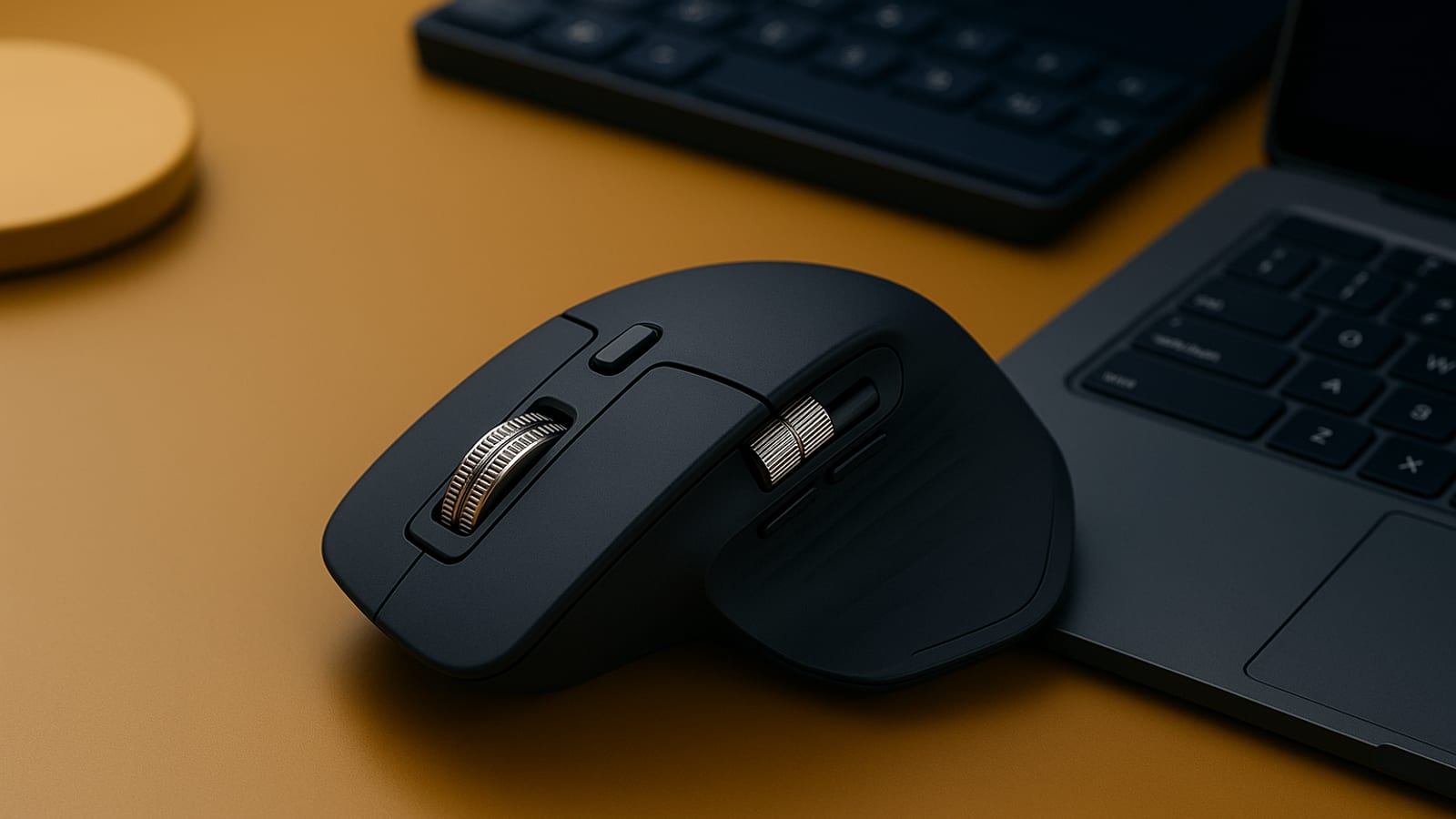
You’re running multiple projects at once. Tabs everywhere. Your mouse is slowing you down more than your thinking is. The Logitech MX Master 3S is the piece of hardware that fixes that — and the receipts back it up. One freelance designer who switched to this setup reported a 30% drop in project delivery time within a single month. That’s not a coincidence. It’s a system. Here’s exactly how it works and how you set it up.
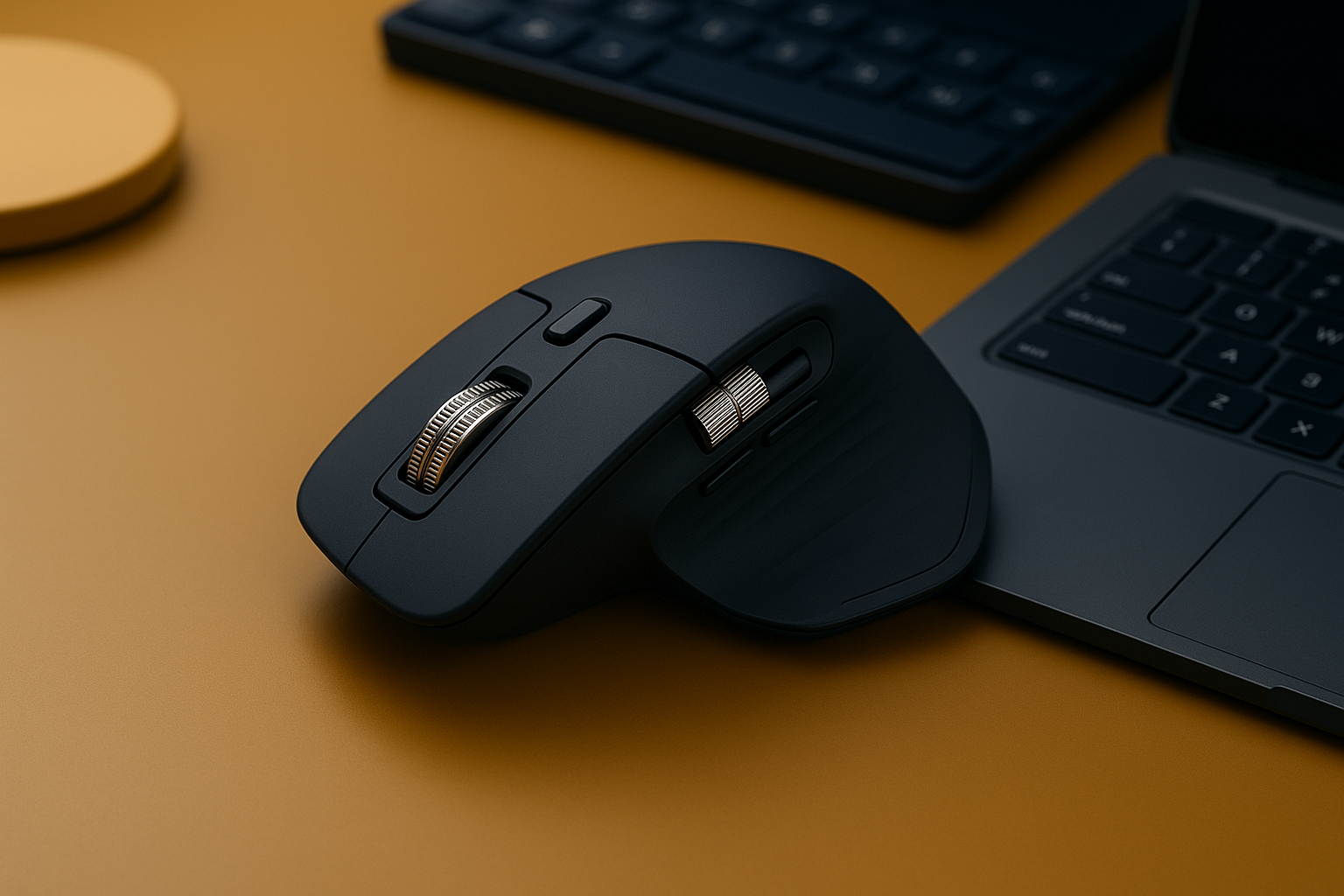
The Power of Precision and Customization
The Logitech MX Master 3S is a precision tool built for people who work in systems. Its advanced sensor gives you accurate tracking across any surface, and the real value is in the profiles — you can configure the mouse to behave differently depending on which application is open. One mouse, multiple setups, zero manual switching.
Setting Up the Logitech MX Master 3S
Here’s how you set it up so it actually does the work for you:
- Download Logitech Options Software: Start here. Grab the Logitech Options software from the official website. This is where you control buttons, scroll behavior, and application profiles — all of it.
- Customize Buttons: Open the software, select your MX Master 3S, and assign specific functions to each button. A practical starting point: set the thumb button to switch between desktops or jump to a specific app you open fifty times a day.
- Fine-Tune Scroll Settings: The electromagnetic scroll wheel is one of the best features on this mouse. You can dial it in for speed or precision through the software. Spend five minutes here — it compounds across every workday.
- Create Application-Specific Profiles: This is where the system earns its keep. Set the mouse to behave one way in Photoshop and a completely different way in Excel. Your hands learn the shortcuts. Your brain stays on the work.

Optimizing Your Workspace with the Right Tools
The mouse is one piece. The full system matters more. Pair the MX Master 3S with a keyboard that keeps up — the Keychron K2 gives you mechanical keys with a satisfying, consistent feel that reduces fatigue over long sessions. Every tool in your workspace should pull its weight.
Lighting is the other variable most people ignore. The Logitech Litra Glow cuts eye strain during long work hours. Less strain means more hours before you hit a wall. That’s owned time you get back.
Maximizing Efficiency with Workflow Automation
Once the hardware is dialed in, look at the software layer. AI-powered tools can handle the repetitive parts of your workflow — data entry, content drafts, routine formatting — so your attention goes where it actually moves the needle. The system handles the low-value tasks while you sleep on the high-value ones.
The real answer here is compatibility. Find AI tools that slot into what you already use. The goal is fewer context switches, not more apps to manage.
Actionable Next Steps
You have the setup. Here’s what to do with it:
- Install and Configure: Download Logitech Options today and spend thirty minutes building your first custom profile. That’s the whole entry cost.
- Explore Additional Tools: The Keychron K2 and the Litra Glow are worth a look if you’re building a workspace that compounds over time.
- Automate Your Workflow: Identify the three tasks you repeat most. Find an AI tool or plugin that handles at least one of them. Start there.
- Visit Resources: For more on building systems that run while you sleep, check out our tutorials and resources pages.
The real answer to a faster workflow is a system that compounds over time — not a single tool, but a stack of tools that each remove friction. Set this up once and it pays you back every day you sit down to work. For more on building that kind of setup, visit The Silent Webmaster.
Advanced Customization Techniques for the Logitech MX Master 3S
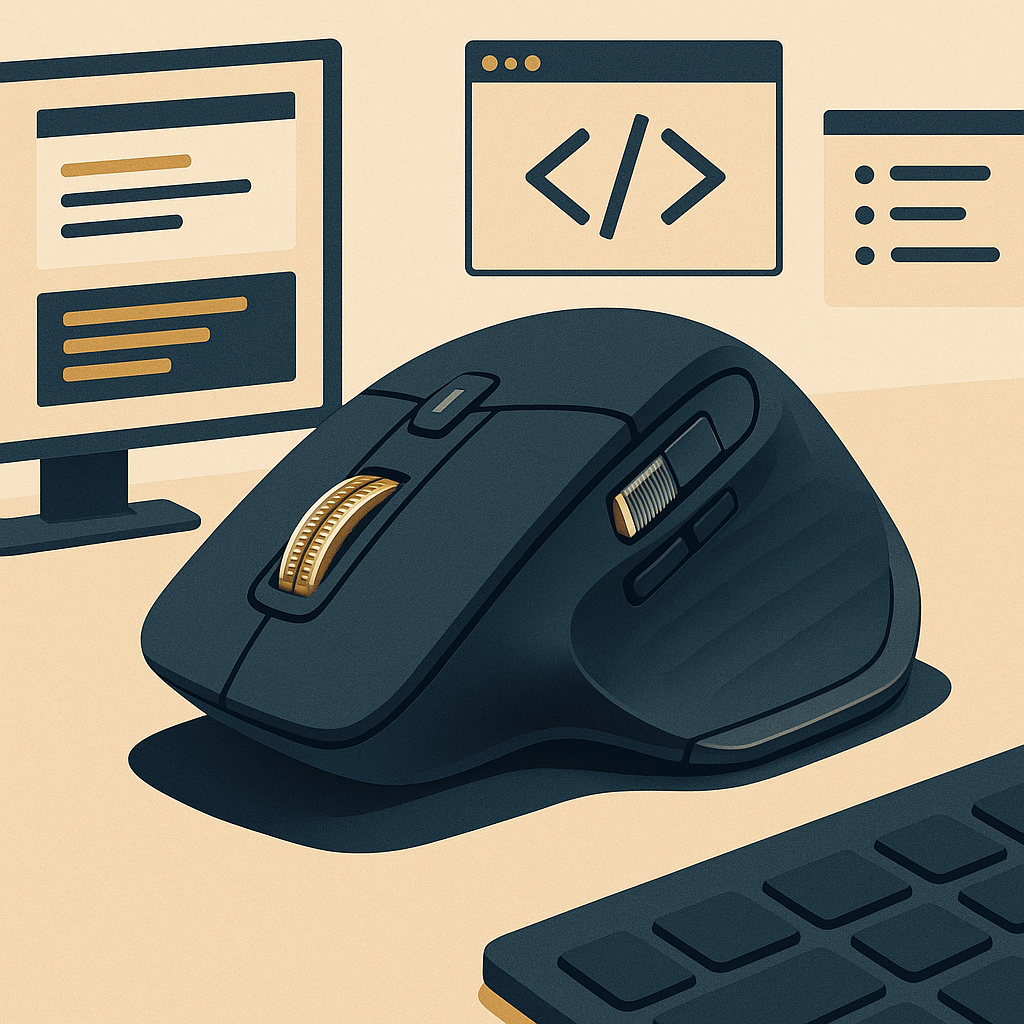
The basic setup gets you most of the way there. The advanced features are where solo operators and multi-project professionals pull further ahead. If you’re switching contexts a dozen times a day, these are the settings worth knowing.
Utilizing Gesture Controls
Hold the gesture button and move the mouse in a direction — that’s all it takes to trigger an action. Switch applications, adjust volume, control media playback. No keyboard required. The receipts on time saved here are small per action but they add up across a full workday.
- Setting Up Gestures: In Logitech Options, go to the gesture controls section and assign actions that match what you actually do. Up and down gestures to scroll through documents. Left and right to move between browser tabs. Map it to your real habits, not a generic template.
- Contextual Gestures: Set different gestures for different apps. In a design tool, use gestures to zoom in and out. In a spreadsheet, use them to navigate between sheets. The mouse adapts to the work instead of the other way around.
Multi-Device Management
If you work across more than one machine, this feature alone justifies the price of the mouse.
- Easy-Switch Technology: Pair the MX Master 3S with up to three devices and switch between them with a single button press. Personal laptop, work desktop, tablet — one mouse covers all of it.
- Flow Across Devices: Logitech Flow lets you move your cursor between computers and copy-paste text, images, and files between them. If you run a desktop and a laptop side by side, this is the feature that makes that setup actually work.
Integrating MX Master 3S with Productivity Software
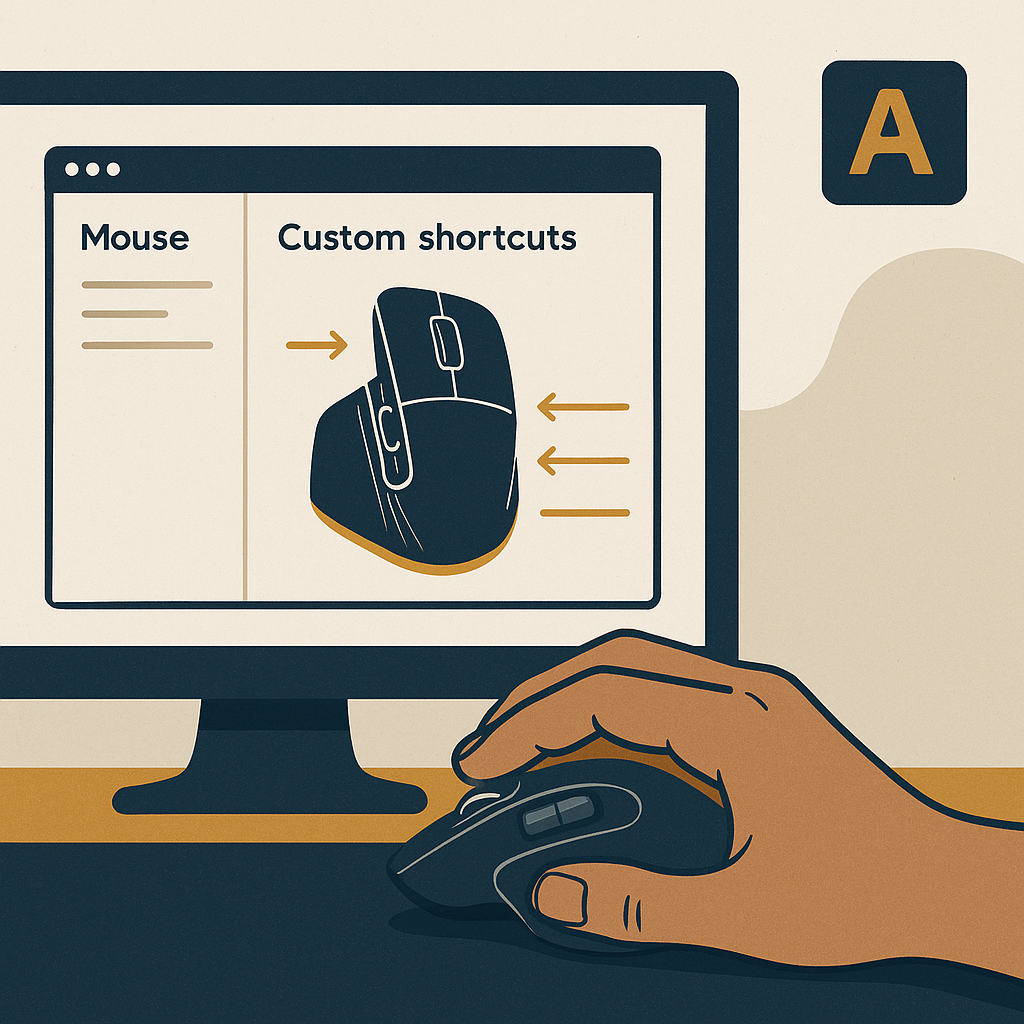
The mouse gets more useful the deeper you connect it to the software you already live in. Here’s how that looks in practice.
Custom Shortcuts for Creative Software
If you’re in Adobe Photoshop or Illustrator for hours at a time, the MX Master 3S can carry a real share of the repetitive work.
- Brush Adjustments: Map the scroll wheel to adjust brush sizes on the fly. It’s more intuitive than a keyboard shortcut and keeps your eyes on the canvas.
- Layer Management: Assign buttons to create new layers or move between existing ones. Fewer keyboard interruptions means the work flows faster.
Boosting Productivity in Office Applications
Office work is where small time savings compound the hardest, because you’re doing the same actions hundreds of times a week.
- Excel Navigation: Assign buttons to jump between tabs or cell ranges. Data management gets faster when your hands don’t have to leave the mouse.
- Email Management: Use the thumb button to switch inbox views or archive emails without breaking focus. A cleaner inbox with less effort — that’s the system working for you.
Key Performance Indicators (KPIs) to Measure Efficiency Gains
If you want to know whether the setup is actually working, measure it. Here’s what to track:
- Task Completion Time: Clock how long repetitive tasks take before and after you configure the mouse. The difference is your real number.
- App Switching Frequency: Count how often you jump between applications. If that number drops, your focus is improving and your task segmentation is tighter.
- Error Reduction: Watch for fewer mistakes in data entry or design work. More precise control produces cleaner output. That’s a receipt worth keeping.
Case Study: Freelance Designer’s Transformation
Here’s a real example of the system in action. A freelance graphic designer was losing time constantly switching between software programs and resetting their context with every task change. They configured application-specific profiles on the MX Master 3S for each design tool they used — and the transitions between tools became nearly automatic.
After one month, they reported a 30% increase in project delivery speed and less wrist strain from the ergonomic improvements. That speed increase meant they could take on more clients. More clients meant more income from the same hours. That’s what a system that compounds looks like on paper.
Disclosure: this article may contain affiliate links. If you buy through them, we may earn a small commission at no extra cost to you.


Leave a Reply