

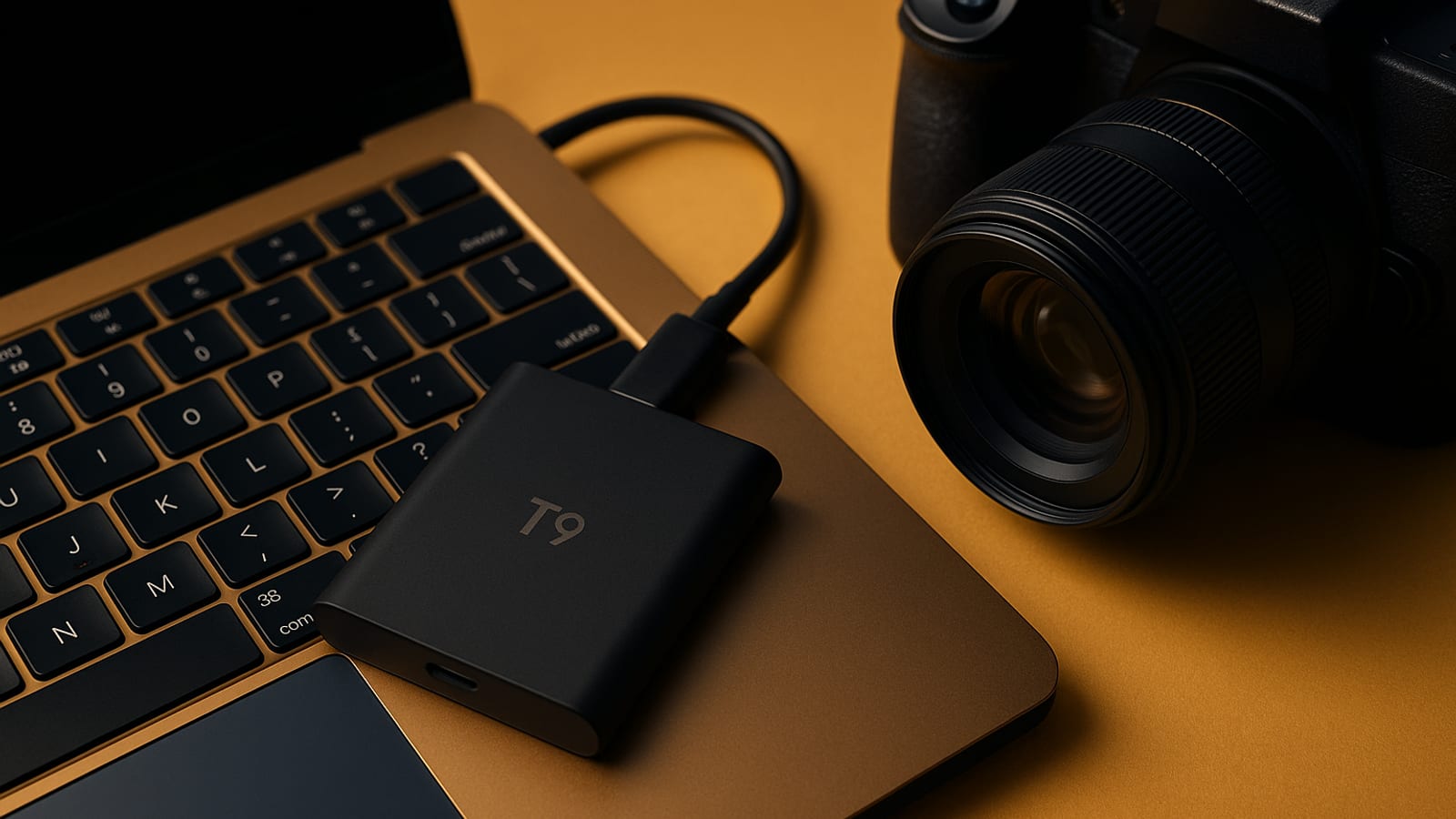
Your entire content library — articles, assets, automation scripts, site backups — is sitting on a single drive. One failure and the system you built stops cold. The Samsung T9 SSD moves at 1,050 MB/s. That’s fast enough to back up a full working library in the time it takes to pour a coffee. Here’s how the receipts add up, and how to set it up so it runs while you sleep.
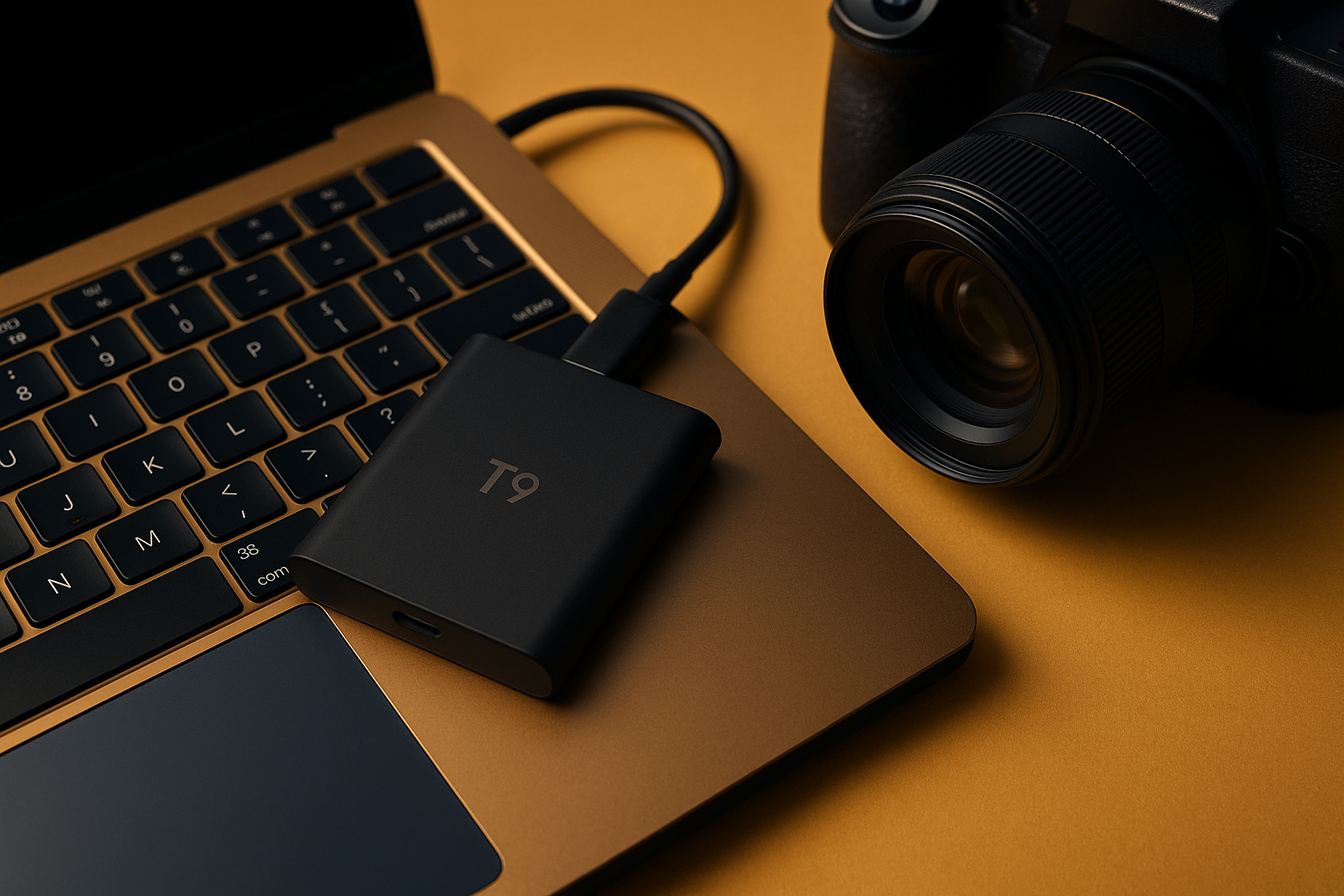
Why the Samsung T9 SSD? Real Numbers, Real Results
Speed is where the T9 makes its case. Read and write speeds hit around 1,050 MB/s. To put that in plain terms: a 10 GB folder of high-resolution images or video files transfers in roughly ten seconds. That’s not a rounding error — that’s the actual number.
When you’re running passive income websites or AI content automation systems, waiting on file transfers is dead time. The T9 cuts that dead time down to almost nothing. You set the backup schedule, it runs, and the data is there when you need it. That’s a system that compounds your output without adding to your workload.
Setting Up the Samsung T9 SSD: A Step-by-Step Guide
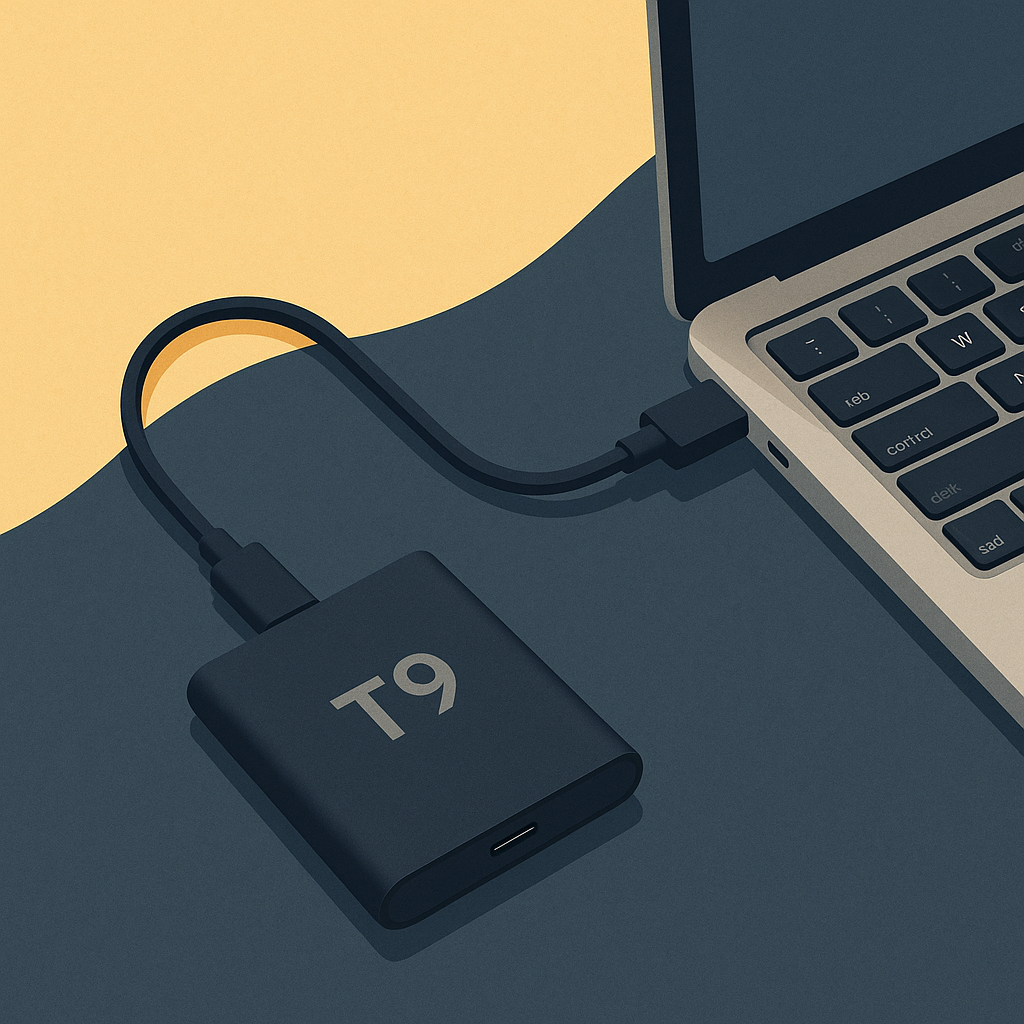
Setup is straightforward. Walk through these steps once and the system handles itself from there.
- Step 1: Connect the T9 to your computer using the included USB-C cable.
- Step 2: Your device should recognize the SSD automatically. If it doesn’t, check the cable connection and try a different USB port.
- Step 3: Format the drive to match your operating system — NTFS for Windows, APFS for Mac.
- Step 4: Install your backup software. Time Machine works on Mac. Windows Backup handles it on PC. Both are free.
- Step 5: Schedule automated backups. Set it once. After that, your data updates on its own while you sleep.
Five steps and you have a backup system that runs without you touching it again. That’s the real answer to data loss — not worrying about it, but building the system that makes it irrelevant.
Owning Your Traffic: The Silent Webmaster’s Take
A reliable backup isn’t just about protecting files. It’s about protecting the infrastructure behind your owned traffic. When your site goes down or a drive fails, you lose more than data — you lose the compounding momentum that took months to build. The T9 keeps that infrastructure intact so you can stay focused on the work that brings visitors in, not on recovering from avoidable disasters.
For more on building systems around owned traffic, visit The Silent Webmaster Blog.
Maximizing Your Investment: Other Tools to Consider
The T9 does its job well on its own. Pair it with the right tools and the whole setup gets tighter:
- Namecheap — Lock down your domain names so your online presence stays yours.
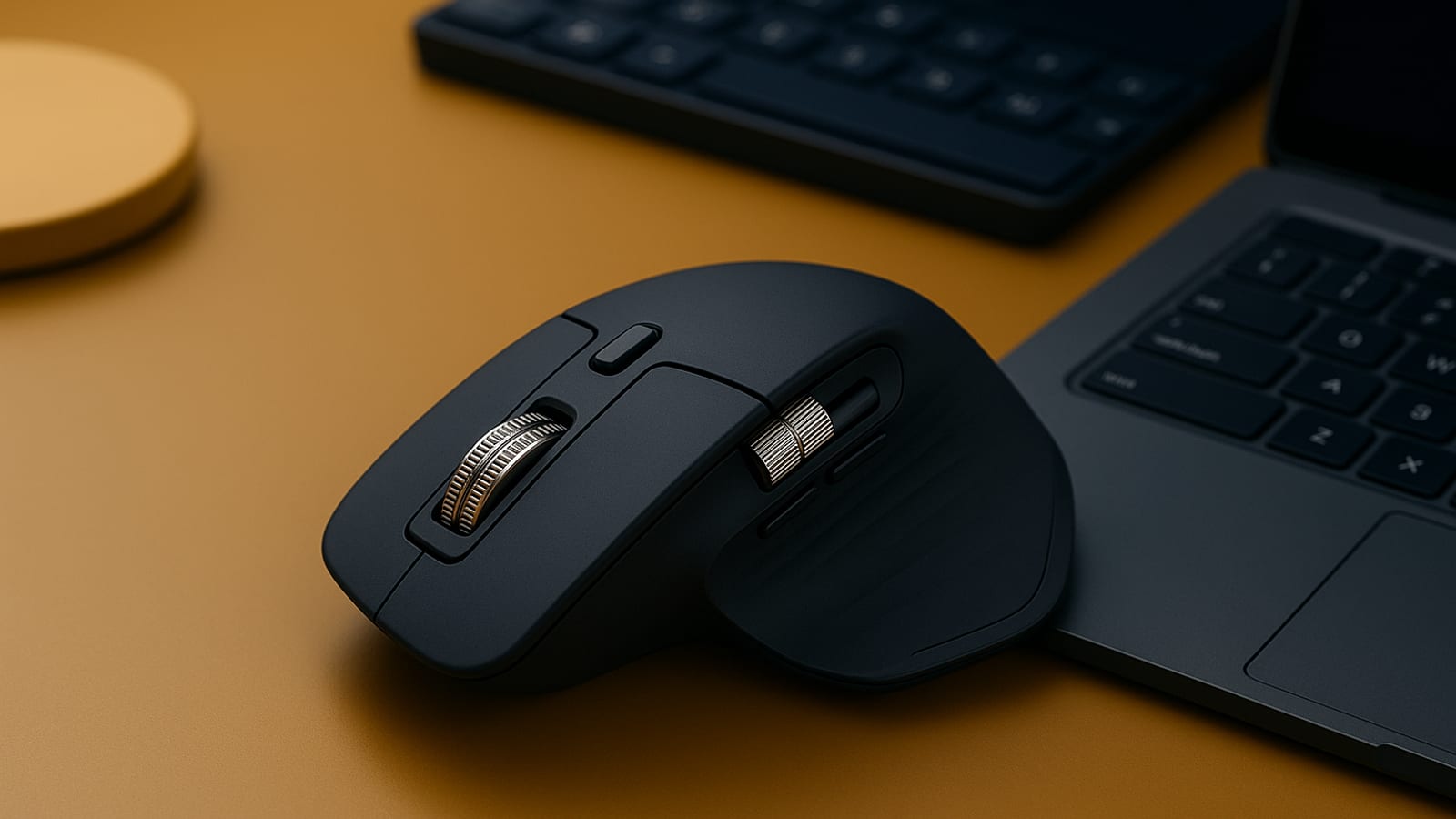
- Logitech MX Master 3S — An ergonomic mouse built for long sessions at the desk.
- Keychron K2 — A tactile keyboard that holds up whether you’re writing or coding.
Together with the T9, these tools form a clean, dependable workspace for running and maintaining your online operations.
Final Thoughts: Take Action Today
The T9 SSD is a single piece of a larger system — one that protects your content, speeds up your workflow, and keeps running while you sleep. The receipts are straightforward: 1,050 MB/s, hardware encryption, drop resistance rated to 2 meters. Those aren’t marketing claims. Those are specs you can verify before you buy.
If your backup situation is a folder on your desktop and good intentions, it’s time to fix that. Start with the Samsung T9 Portable SSD and build the system properly.
For more on building sustainable income systems, visit The Silent Webmaster Tutorials.
Understanding Data Security with Samsung T9 SSD
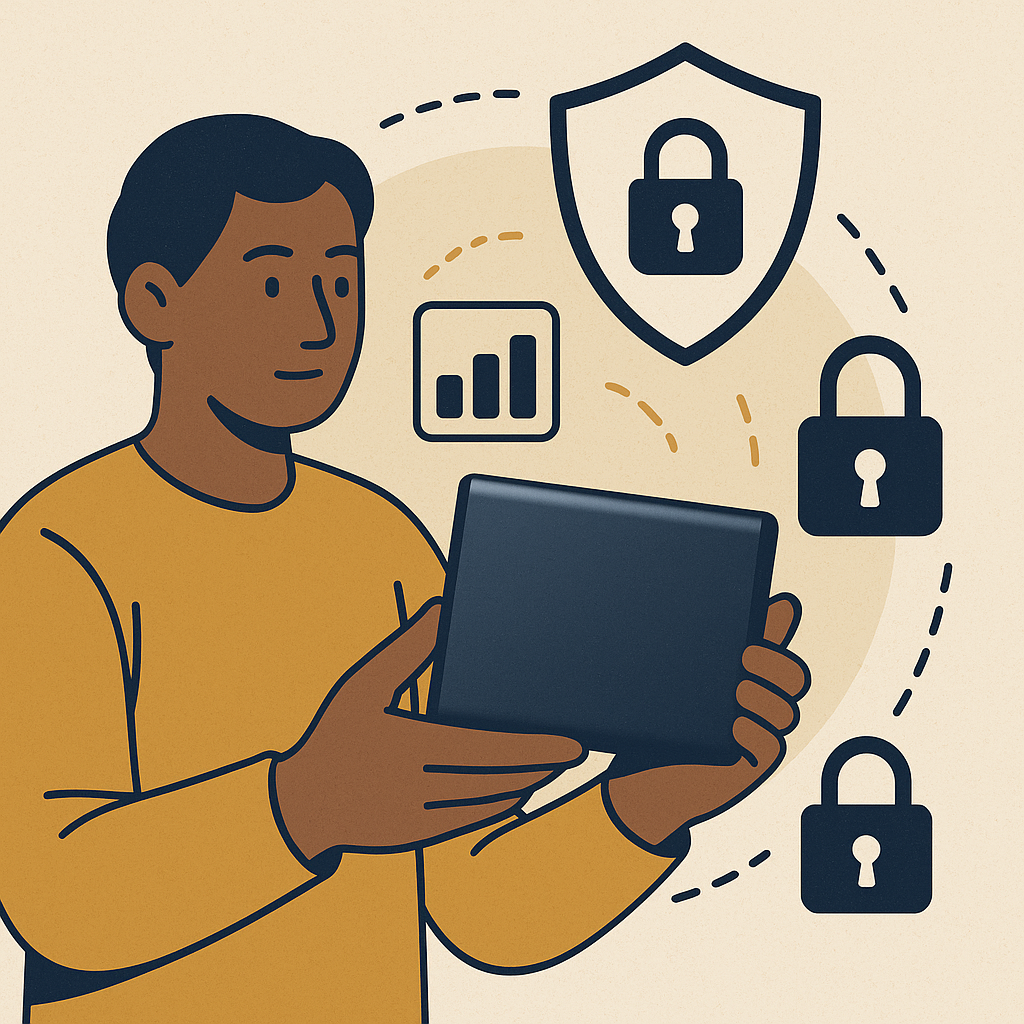
Speed matters, but so does what happens if the drive ends up in the wrong hands. The T9 includes hardware-based AES 256-bit encryption. That means your files are locked at the hardware level — not a software workaround, but baked into the drive itself. If you’re handling client work or proprietary content, that’s the layer of protection that actually holds up.
Implementing Encryption
Getting the encryption active takes three steps:
- Enable Password Protection: Open Samsung’s Portable SSD software and set a password for the device. That’s the first gate between your data and anyone who picks up the drive.
- Activate AES 256-bit Encryption: Confirm this is turned on inside the Samsung software. It supports the standard, but you need to switch it on manually.
- Keep the Software Updated: Samsung pushes security patches through software updates. Running an outdated version means leaving known gaps open.
Do those three things once and your data stays protected without any ongoing effort on your part. That’s the system working the way it should.
Case Study: Freelance Photographer’s Success with Samsung T9 SSD
Alex is a freelance photographer. High-resolution files, daily shoots, clients waiting on edits. Before the T9, he was watching progress bars for hours — time that should have gone into editing and delivery.
After switching to the T9, file transfers that used to eat half his afternoon dropped to minutes. His editing queue cleared faster. Projects shipped sooner. Clients noticed.
The portability mattered too. Alex carried his full portfolio on the T9 to client meetings — no internet connection required, no cloud lag, no loading screens. And because the encryption was active, sensitive client images stayed locked even when the drive left his desk.
For Alex, the receipts were simple: less time waiting, more time billing, and a professional setup that held up in the field.
Checklist: Optimizing Your Samsung T9 SSD for Remote Work
Run through this checklist once when you set up the drive. After that, the system handles itself.
- Initial Setup: Format the drive correctly for your OS — NTFS for Windows, APFS for Mac.
- Data Organization: Build a folder structure that mirrors your actual project workflow. You’ll find files faster when it matters.
- Automated Backups: Schedule backups through Time Machine or Windows Backup. Set it and let it run while you sleep.
- Data Encryption: Activate AES 256-bit encryption through Samsung’s software before you put anything sensitive on the drive.
- Portability: The T9 fits in a pocket. Use that. Your full working library goes with you without depending on a Wi-Fi connection.
- Performance Monitoring: Check drive health periodically through Samsung’s software. Catching a problem early is cheaper than recovering from one later.
Six items. One pass. Then the system runs on its own.
FAQs: Samsung T9 SSD for Solo Entrepreneurs
Q: How does the Samsung T9 SSD improve my workflow?
A: Read and write speeds at 1,050 MB/s mean large file transfers that used to take minutes now take seconds. Less waiting means more time on the work that actually moves the needle.
Q: Can I use the Samsung T9 SSD with multiple devices?
A: Yes. The T9 works with Windows, macOS, and Android. One drive, multiple machines — no compatibility issues to work around.
Q: What if I lose the SSD? Is my data secure?
A: If you’ve enabled hardware encryption and password protection, the data on the drive is inaccessible without the password. Losing the hardware doesn’t mean losing control of your files.
Q: How durable is the Samsung T9 SSD?
A: The T9 is shock-resistant and rated to survive drops from up to 2 meters. It’s built to travel, not just sit on a desk.
Disclosure: this article may contain affiliate links. If you buy through them, we may earn a small commission at no extra cost to you.


Leave a Reply