

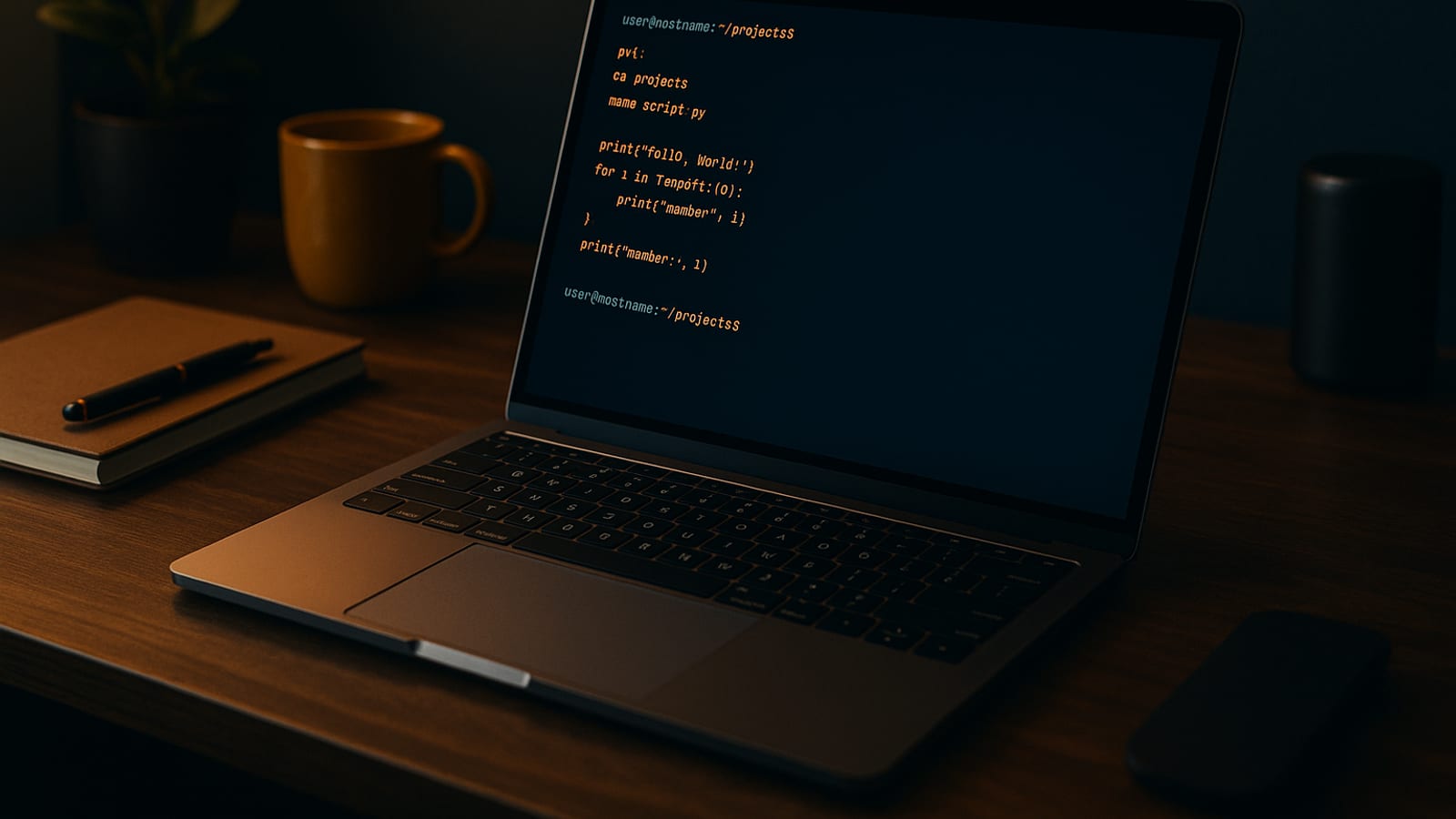
A developer cut her deployment time by 30% in two months. No new laptop. No paid course. Just the Linux terminal running quietly in the background while she focused on shipping code. That’s the system. Here’s how the receipts add up, and how you can put it to work in your own workflow.
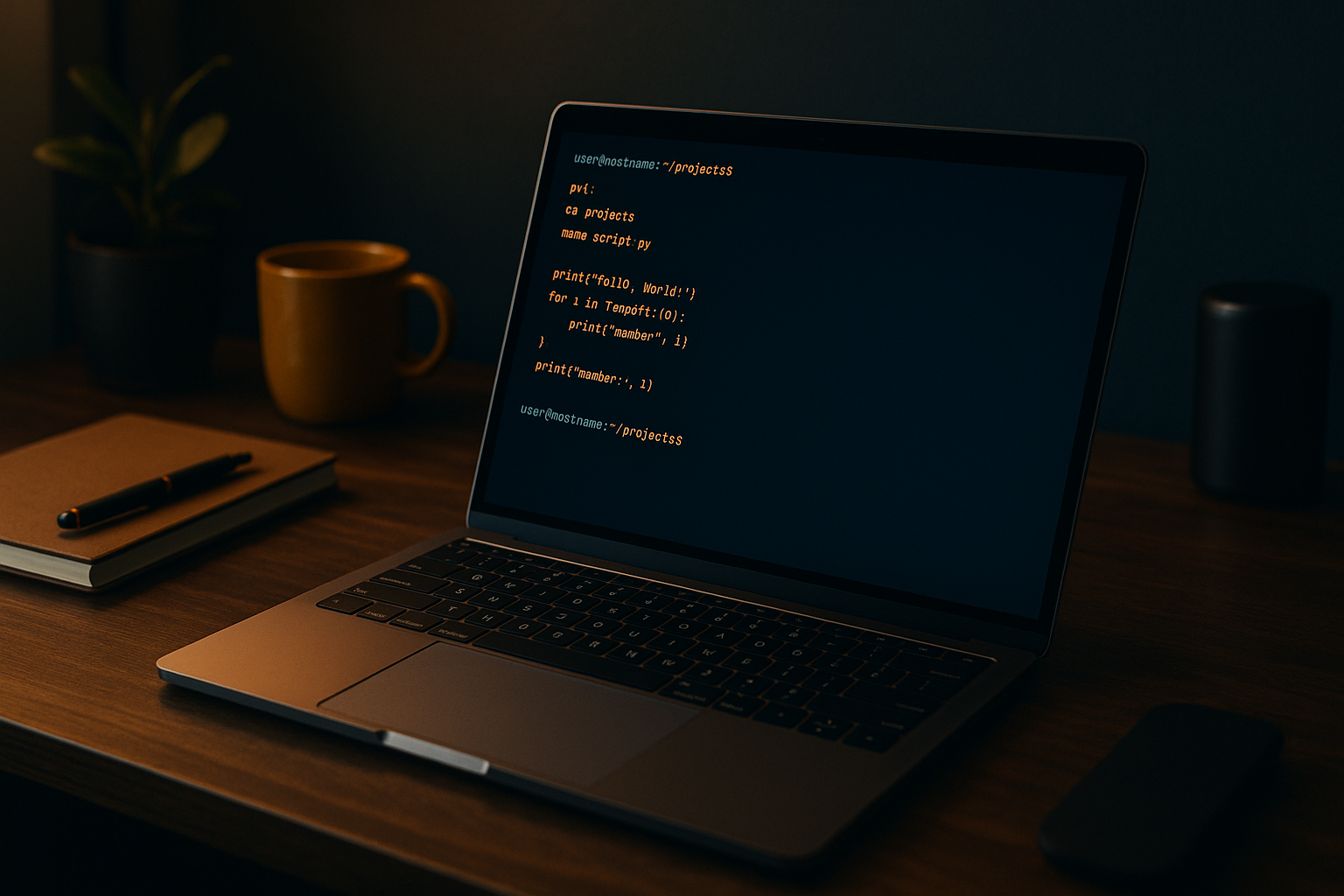
The Power of the Linux Terminal
She cut her coding time by 30% in two months. No fancy software. No expensive courses. Just command lines doing the repetitive work while she stayed focused on building. That’s not a claim pulled from thin air — it’s what happens when you treat the terminal as a system rather than a scary black box.
Why the Terminal?
The terminal gives you a direct line to your operating system. You automate repetitive tasks, move files in seconds, and run complex operations with a single command. Developers who make the switch consistently report spending less time on routine work and more time on actual development. That’s owned efficiency — and it compounds.
- Speed: Execute tasks faster without the overhead of a graphical interface.
- Efficiency: Automate processes that would otherwise require multiple steps.
- Control: Interact directly with the system for more precise operations.
Getting Started with the Linux Terminal
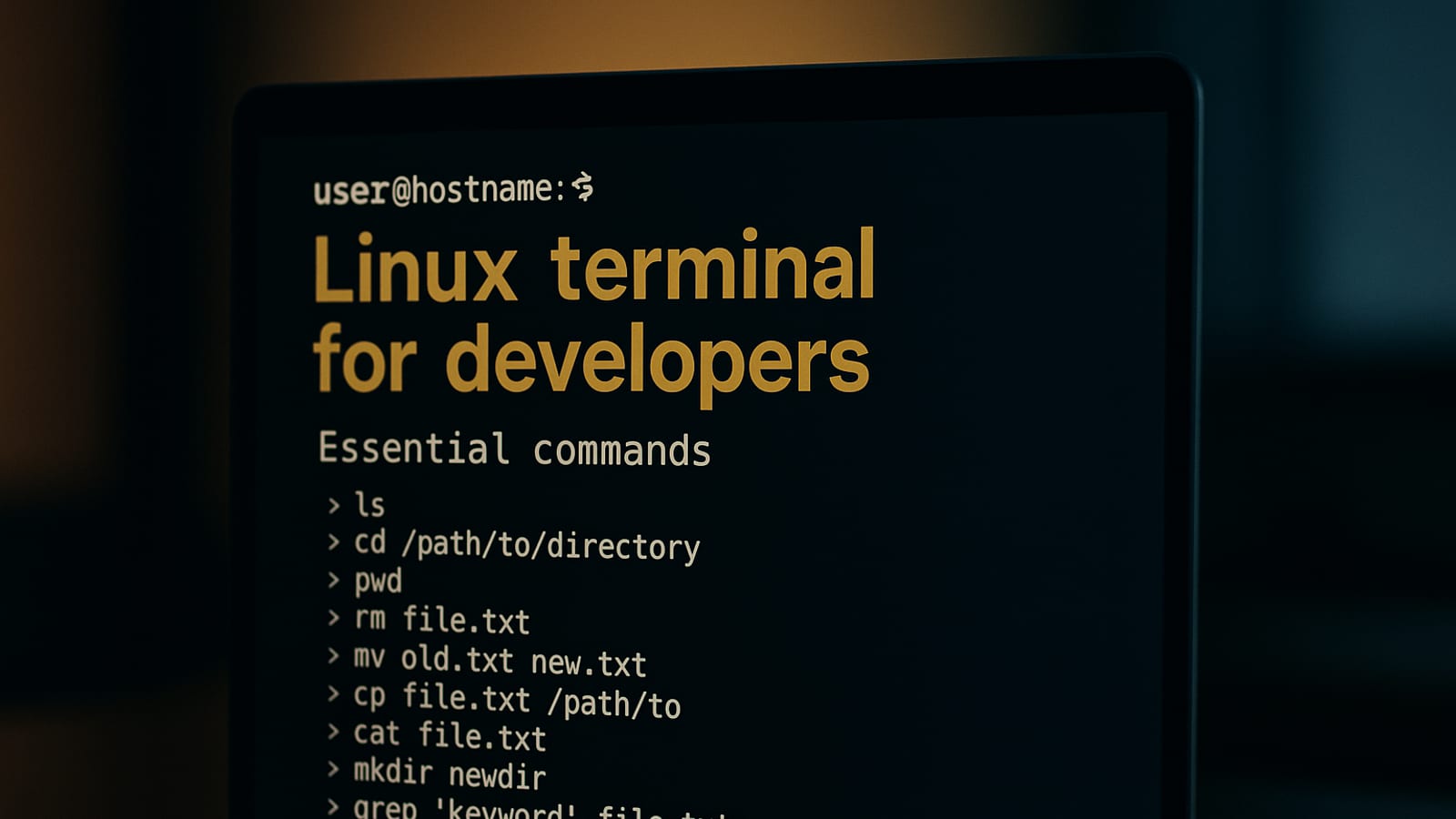
You need a handful of commands to get moving. Here’s the breakdown, step by step:
- Open the Terminal: On most Linux systems, press Ctrl + Alt + T.
- Learn Basic Commands: Start with
ls(list files),cd(change directory), andmkdir(make directory). - Practice: Navigate directories and manage files until the commands feel natural.
- Automate Tasks: Once you’re comfortable, write simple shell scripts to handle repetitive work.
Tools to Enhance Your Terminal Experience
Learning commands is only part of the picture. The right tools are what turn a basic terminal into a real system. Here are three worth knowing:
- Zsh: A shell that goes beyond the default bash — auto-suggestions, smarter tab completion, and advanced scripting built in.
- Tmux: A terminal multiplexer that lets you run several programs inside one terminal window. Multitasking without the clutter.
- Vim: A text editor that lives inside the terminal. Steep learning curve, but once it clicks, you edit faster than you thought possible.
All three install with simple commands and come with solid documentation. Zsh, for example, takes one line: sudo apt install zsh. You’re up and running in under a minute.
Hardware Recommendations for Terminal Users
Software does the heavy lifting, but the right hardware keeps you comfortable through long sessions. A few options worth considering:
- Logitech MX Master 3S: Built for precision and comfort during extended coding sessions.
- Keychron K2: A mechanical keyboard with a tactile feel that makes terminal work noticeably more responsive.
- Sony WH-1000XM5: Noise-canceling headphones that keep distractions out while you work.
Building Systems with the Linux Terminal
Once the basics are solid, the terminal becomes the backbone of systems that run while you sleep. Whether you’re shipping a mobile app or managing passive income sites, the efficiency you build here compounds. Every automated task is time you get back.
Case Study: Automating a Deployment Process
Here’s a real example. One developer saved over 5 hours per week by scripting a deployment workflow that used to be done by hand. The receipts are straightforward:
- Identify Repetitive Tasks: They listed every step repeated at each deployment — pulling code, running tests, updating servers.
- Create a Shell Script: A simple script collapsed all those steps into a single command.
- Schedule with Cron Jobs: Cron jobs handled the timing, so deployments ran on schedule without anyone sitting at a keyboard.
Five hours a week back. That’s 260 hours a year redirected from routine tasks to actual development. That’s what owned systems look like in practice.
Next Steps: Own Your Traffic, Build Your Systems
The terminal is not just a shortcut. It’s the foundation of systems that keep working while you sleep. As you get more comfortable, dig into the resources on The Silent Webmaster blog for more on building systems that generate real, measurable results.
Start by folding these tools into your daily workflow. Learn one shell script. Set up one alias. Each small step compounds. The real answer isn’t a single big move — it’s consistent, quiet progress backed by receipts, not hype.
Advanced Command Line Techniques
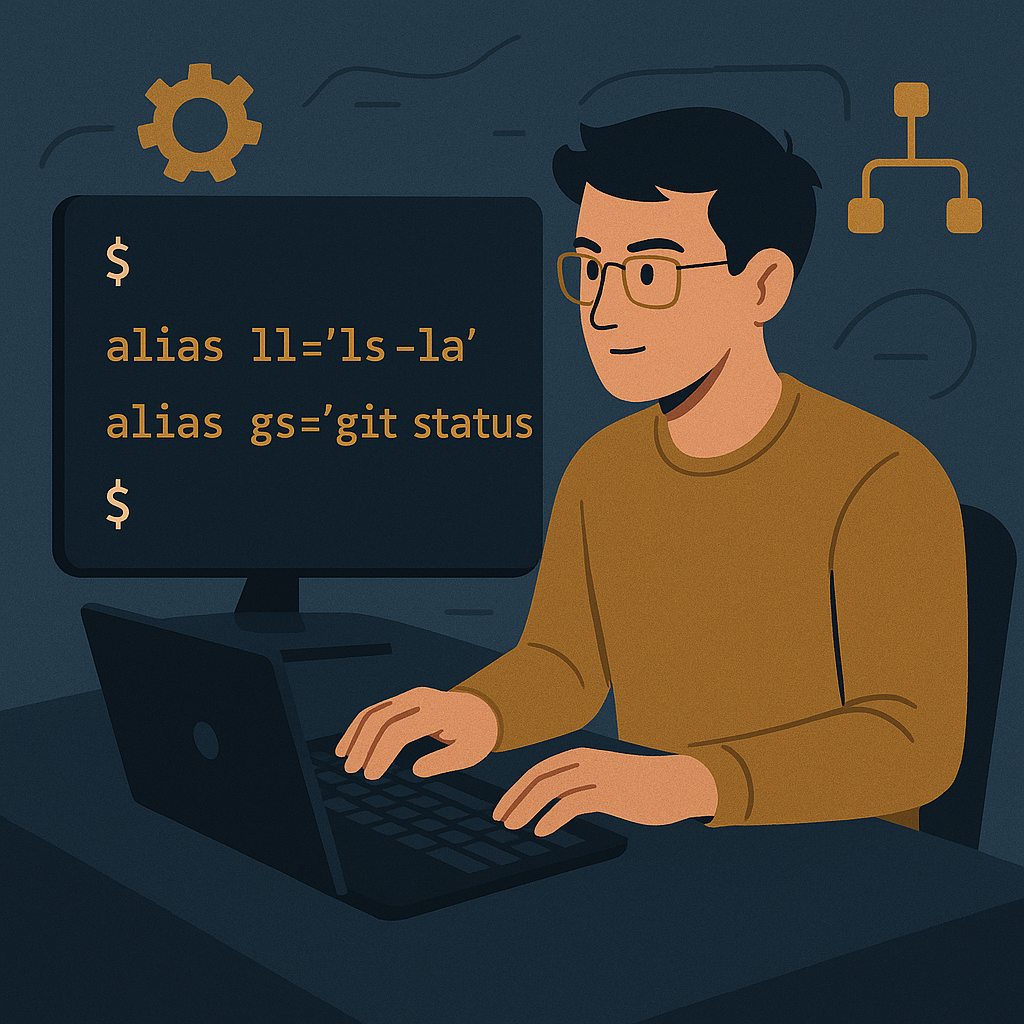
Once the basics are second nature, these techniques are where your productivity starts to pull ahead of the average developer.
Using Aliases for Efficiency
Aliases are shortcuts for commands you type constantly. They shave seconds off every action, and those seconds add up across a full workday:
- Create an Alias: Use the
aliascommand to define one. For example,alias ll='ls -la'lists all files in a directory with one short command. - Persist Aliases: Add them to your
.bashrcor.zshrcfile so they survive a reboot. - Efficiency Tip: Review your command history regularly. Anything you type more than a few times a day is a candidate for an alias.
Mastering Text Processing with Sed and Awk
Text processing shows up constantly in development and data work. sed and awk handle it without breaking a sweat:
- Sed: Use it for stream editing.
sed 's/old/new/g' file.txtreplaces every instance of “old” with “new” across an entire file in one pass. - Awk: Built for pattern scanning.
awk '{print $1}' file.txtpulls and prints the first column from every line in a file. - Combine Tools: Pipe
sedandawktogether to build data processing workflows that would take hours to do manually.
Version Control Integration
Keeping Git inside your terminal workflow keeps everything in one place and speeds up the parts of development that otherwise create friction:
- Git Aliases: Set up shortcuts for commands you run constantly.
alias gs='git status'is a simple start. - Branch Management: Switch branches, merge changes, and resolve conflicts directly from the command line without touching a GUI.
- Automate Workflows: Write scripts for pre-commit hooks or post-merge tasks. The system handles the process; you focus on the code.
FAQs: Linux Terminal for Beginners
What if I make a mistake in the terminal?
Mistakes are part of learning the system. Press ctrl + c to stop any running process. If you’ve changed a file by accident, Git can roll it back. If you’re still building confidence, practice inside a virtual machine — errors there stay contained and cost you nothing.
How can I learn more about a specific command?
Type man followed by the command name. man ls pulls up the full manual for ls — every flag, every option, right there in the terminal. Online forums and tutorials fill in the gaps when the manual page isn’t enough.
Is it possible to customize the terminal interface?
Yes. You can change the color scheme, font, and prompt by editing your .bashrc or .zshrc file. Tools like Oh My Zsh go further — themes and plugins that improve both how the terminal looks and how it behaves. Set it up once and it runs your way every session after that.
Disclosure: this article may contain affiliate links. If you buy through them, we may earn a small commission at no extra cost to you.
Leave a Reply