

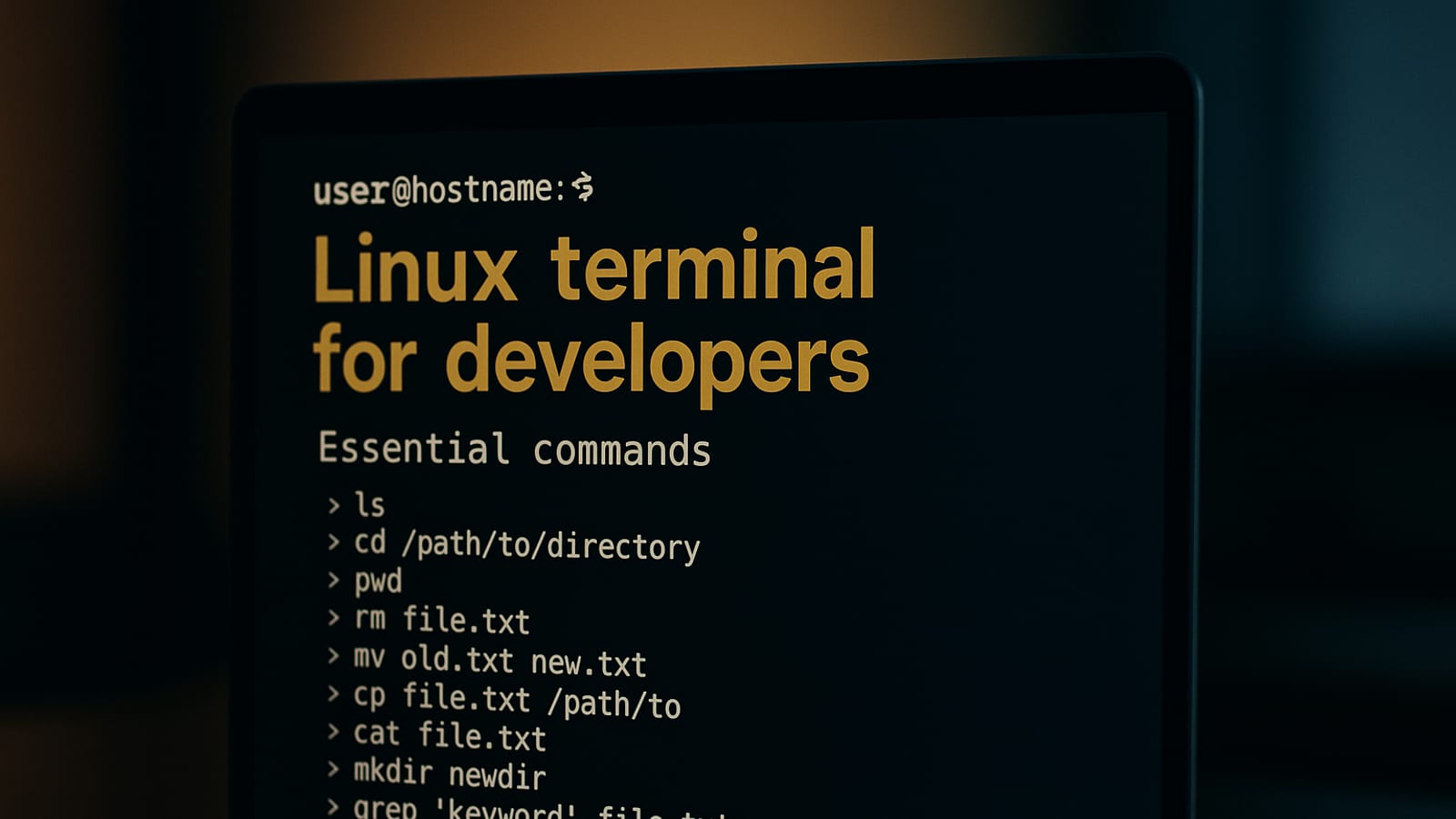
You type one command into a blinking cursor and your entire system responds. No clicking through menus. No waiting on a GUI to catch up. Developers who work this way report up to 30% faster workflow compared to those who stick to graphical interfaces. That’s not a small edge — that’s the difference between shipping today and shipping tomorrow. Here’s how the terminal works, why it matters, and exactly what you need to start using it.
Understanding the Basics: Why the Linux Terminal?
Graphical interfaces are built for convenience. The terminal is built for control. When you work from the command line, you talk directly to your system — no translation layer, no extra clicks. That 30% workflow improvement isn’t theoretical. It shows up in the time you spend waiting, searching, and repeating the same steps by hand. The terminal turns those repetitive steps into a system that runs on its own.
Essential Linux Commands to Get You Started
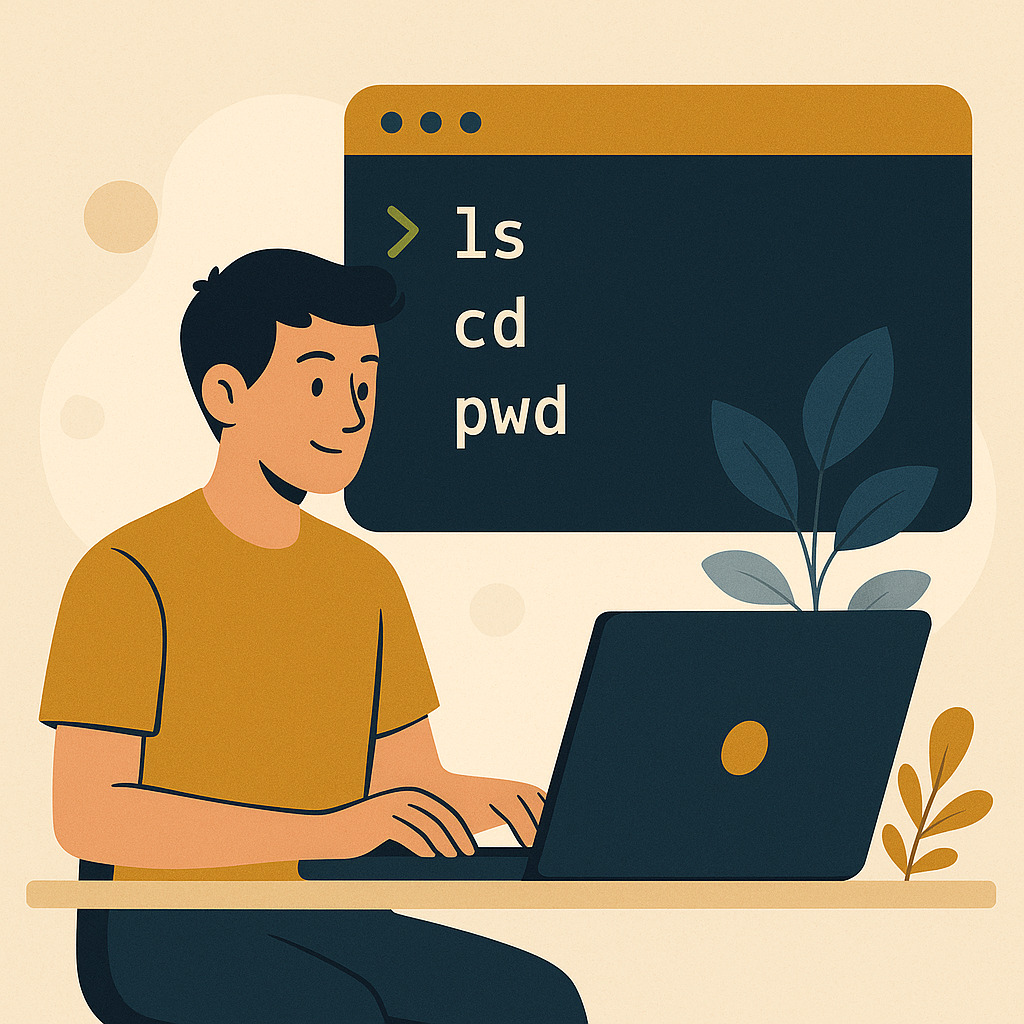
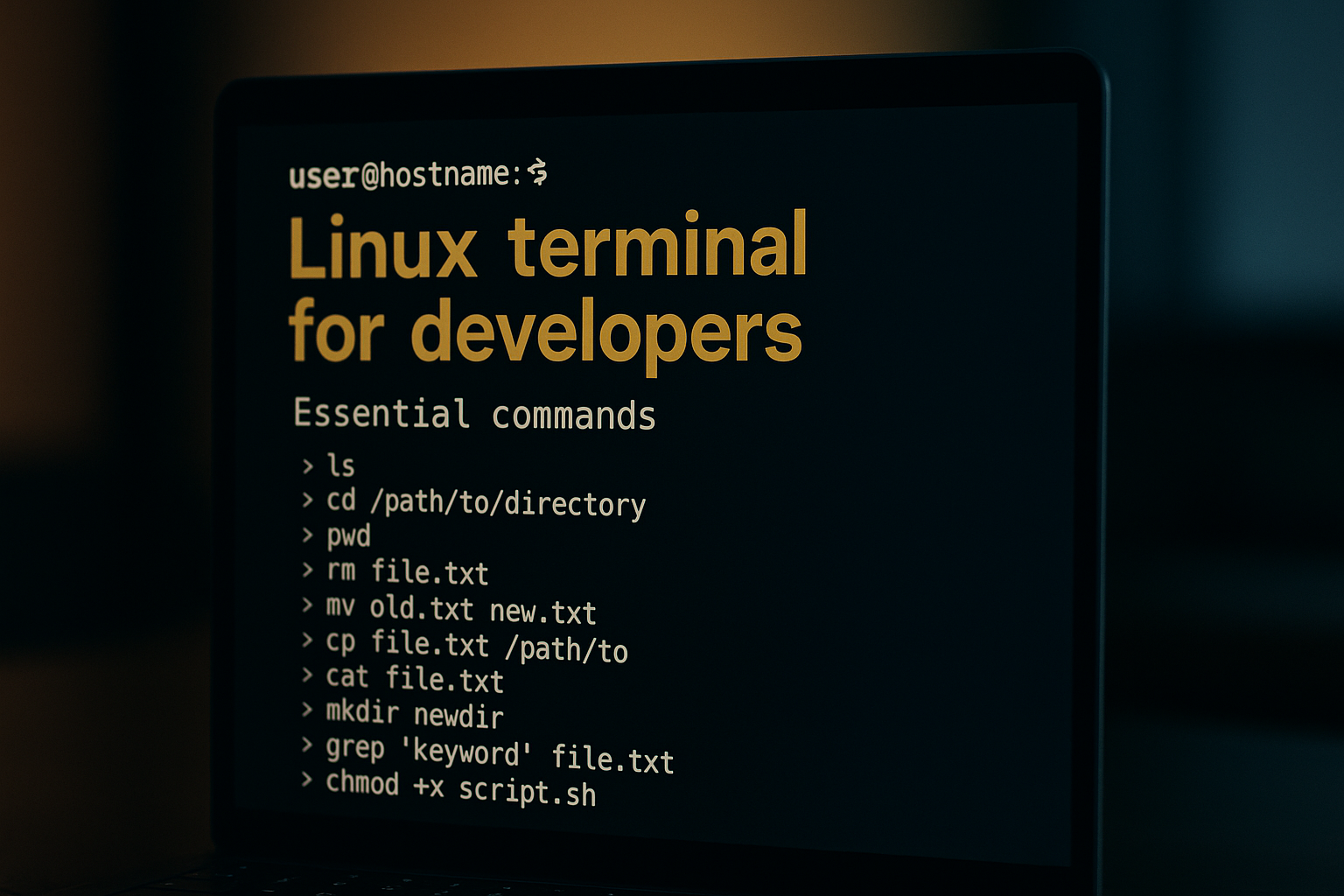
You don’t need to memorize every command to start seeing results. These seven are the ones you’ll reach for every single day:
- ls – Lists directory contents
- cd – Changes the current directory
- mv – Moves or renames files
- rm – Removes files or directories
- touch – Creates an empty file
- grep – Searches text using patterns
- chmod – Changes file permissions
Each one opens a door to automation. grep alone can cut the time you spend hunting through a large codebase down to seconds. That’s the real answer when people ask why developers prefer the terminal — it’s not preference, it’s receipts.
Advanced Tips: Making the Terminal Work for You
Once the basics feel natural, you can start building a system that does the heavy lifting for you.
1. Automate Repetitive Tasks with Bash Scripts
A bash script is just a list of commands saved to a file. Run the file once and your system executes every step in sequence. Developers who automate their deployment process this way report cutting deployment time in half. You write it once, and it runs while you sleep.
2. Use cron Jobs for Scheduled Tasks
Cron jobs let you schedule any script or command to run at a set time — every hour, every night, every Monday morning. Set up automated backups or scheduled reports and they generate on their own. That’s owned traffic logic applied to your workflow: the system compounds value without you touching it.
3. Customize Your Terminal with Aliases
An alias is a shortcut you define once. Set alias ll=’ls -la’ and you never type the long version again. Small individually, but across thousands of commands over months, the time savings add up in a way you can actually measure.
Tools to Enhance Your Linux Terminal Experience
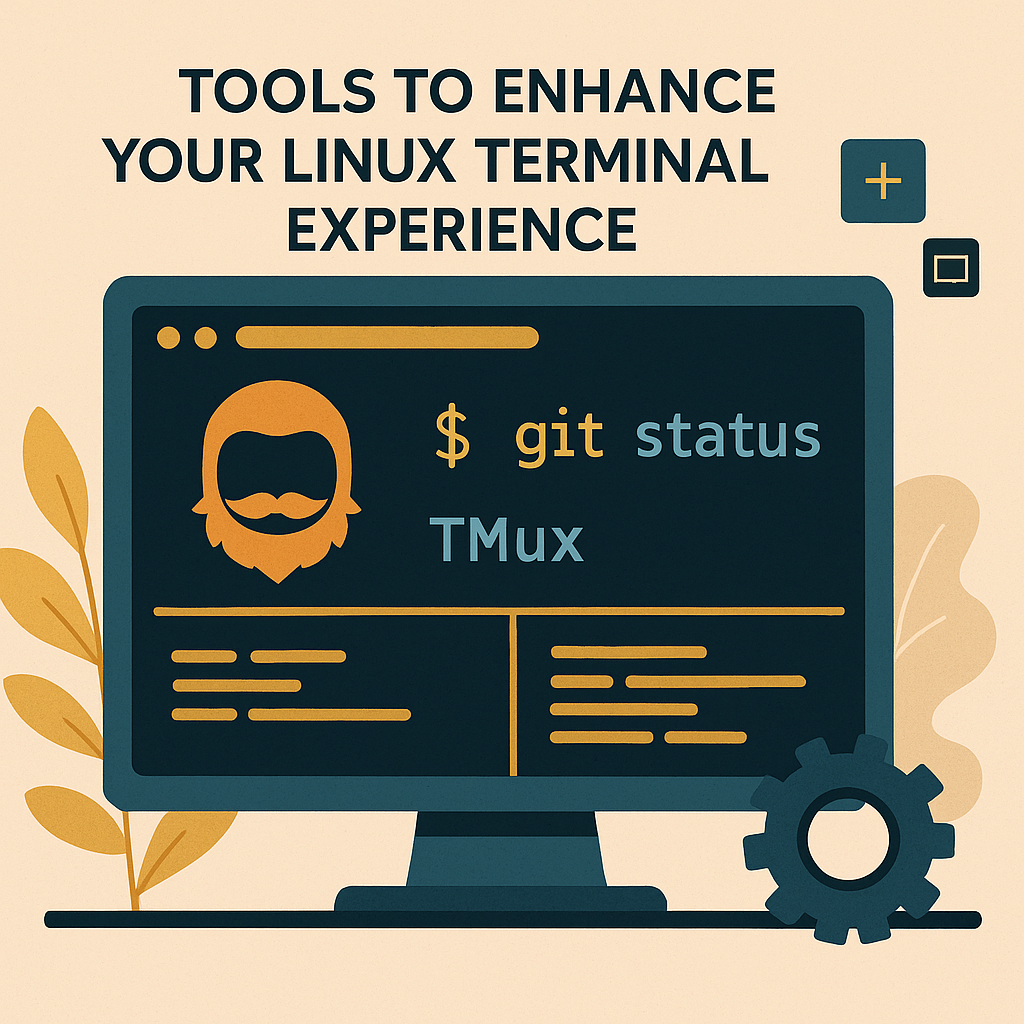
Three tools worth adding to your setup:
- Oh My Zsh – Adds themes and plugins to your shell that make navigation faster and the interface easier to read.
- Tmux – A terminal multiplexer that lets you run several programs inside one terminal window and switch between them instantly.
- Vim – A text editor built for speed. Steep learning curve, but developers who stick with it edit faster than those using a mouse-driven editor.
Oh My Zsh in particular makes your command line interface cleaner and more intuitive from the first day you install it.
Conclusion: Step into the Future with Confidence
The terminal isn’t just a faster way to do what you already do. It’s the foundation of a system that runs on its own — scripts executing, jobs scheduling, processes completing while you sleep. Start with the seven commands above, add automation as you go, and the receipts will show up in your own workflow data.
Ready to go deeper? Browse our tutorials for step-by-step guides, or check the blog for more on building systems that work without you watching them.
If you want a hardware upgrade to go with it, the Logitech MX Master 3S gives you smooth, precise navigation across your workspace.
Practical Examples of Using Linux Terminal in Development Projects
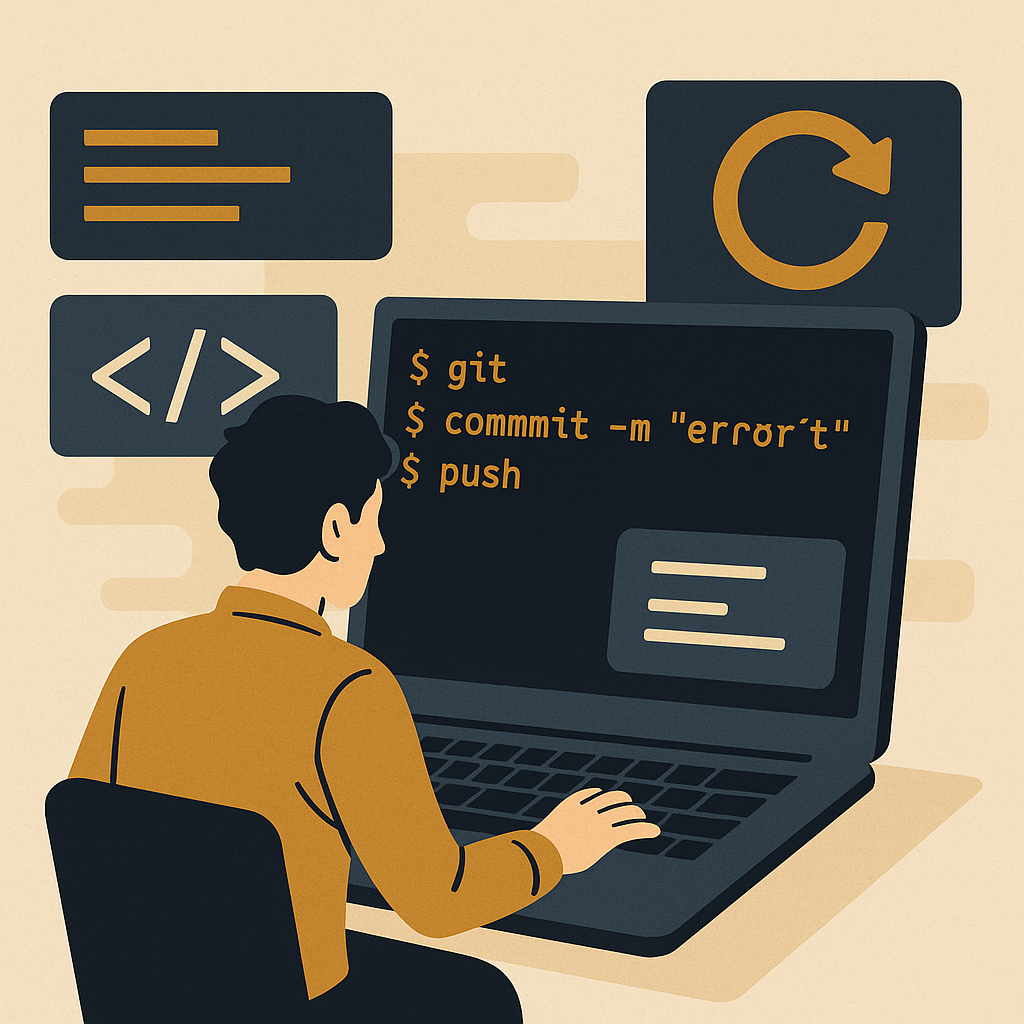
Knowing the commands is one thing. Seeing them work inside a real project is where it clicks. Here are two areas where the terminal pays off immediately.
Version Control with Git in the Terminal
Git through the terminal gives you faster, more precise control over your repositories than any GUI client. These are the five commands you’ll use on every project:
- git init – Initializes a new Git repository in your project directory.
- git clone [url] – Clones an existing repository from a remote server.
- git add . – Stages all changes in the current directory for the next commit.
- git commit -m “message” – Commits the staged changes with a descriptive message.
- git push – Pushes your commits to the remote repository.
Most developers who switch to terminal-based Git don’t go back. The speed difference is something you feel within the first week.
Efficient File Management for Large Projects
Large projects with hundreds of files get messy fast. These three commands keep things under control:
- find – Locates files inside directories.
find . -name '*.js'pulls every JavaScript file in your current directory and every subdirectory below it. - tar – Archives multiple files into one.
tar -cvf archive.tar folder/compresses a folder for easy distribution. - rsync – Keeps two directories in sync.
rsync -av source/ destination/copies only what has changed, so it’s fast even on large codebases.
These commands keep your project files organized and accessible — which matters more as your projects grow.
Metrics to Measure Terminal Usage Efficiency

If you want to know whether your terminal habits are actually improving, track these four numbers:
- Command Frequency – Which commands do you type most? Those are your best candidates for aliases or scripts.
- Task Completion Time – Clock how long frequent tasks take before and after you add terminal efficiencies. The gap is your receipts.
- Error Rate – Count your command errors over time. A falling error rate means your muscle memory is building.
- Automation Impact – Compare the time your bash scripts and cron jobs save against how long those same tasks took manually. That number compounds every week.
These metrics show you exactly where you’re improving and where the next opportunity is.
Common Challenges and Solutions in Linux Terminal Usage

Three problems come up for almost every beginner. Here’s what to do when they hit you.
Permissions Denied
You’re trying to access or modify a file your user account doesn’t own. Prefix the command with sudo to run it with superuser privileges. For example, sudo nano /etc/hosts lets you edit system files that are otherwise locked.
Accidental File Deletion
Use rm -i instead of plain rm. The -i flag asks for confirmation before removing each file. Pairing that habit with Git version control gives you a second layer of protection — your history is always there if you need to recover something.
Command Not Found
This usually means the software isn’t installed, or your PATH variable doesn’t include the directory where it lives. Check that the package is installed first, then verify your environment variables are set correctly. Both fixes take under two minutes once you know where to look.
Integrating Linux Terminal with Development Environments
The terminal works best when it’s woven directly into the tools you already use. Here’s how to do that in two places.
Using Terminal within IDEs
Visual Studio Code, IntelliJ IDEA, and PyCharm all have a built-in terminal panel. Open it and you can run build scripts, manage Git, and test your application without switching windows. Keeping everything in one place means fewer context switches and a cleaner workflow from start to finish.
Terminal and Continuous Integration/Deployment (CI/CD)
The terminal is where CI/CD pipelines are built. Tools like Jenkins and GitLab CI run on shell scripts you write yourself. Every time you push a change to your repository, those scripts automatically test and deploy your code. The system handles it while you sleep — fewer manual errors, faster cycles, and a process that compounds reliability over time.
Disclosure: this article may contain affiliate links. If you buy through them, we may earn a small commission at no extra cost to you.
Leave a Reply