

Picture this: You’re navigating through a bustling city of code, a metropolis of possibilities. But without the right map, you might find yourself lost in the maze. Enter the Linux terminal—your trusty guide to mastering the landscape of web development.
Why Linux Terminal Skills Matter
In 2026, web development is not just about writing code; it’s about efficiency and control. Many developers who master the Linux terminal report significant improvements in productivity. Imagine cutting your development time by a third. That’s the power of knowing your way around the terminal.
Let’s break down the essentials of Linux terminal skills, focusing on what you need to start building your own systems that operate while you sleep.
Getting Started with Linux Terminal
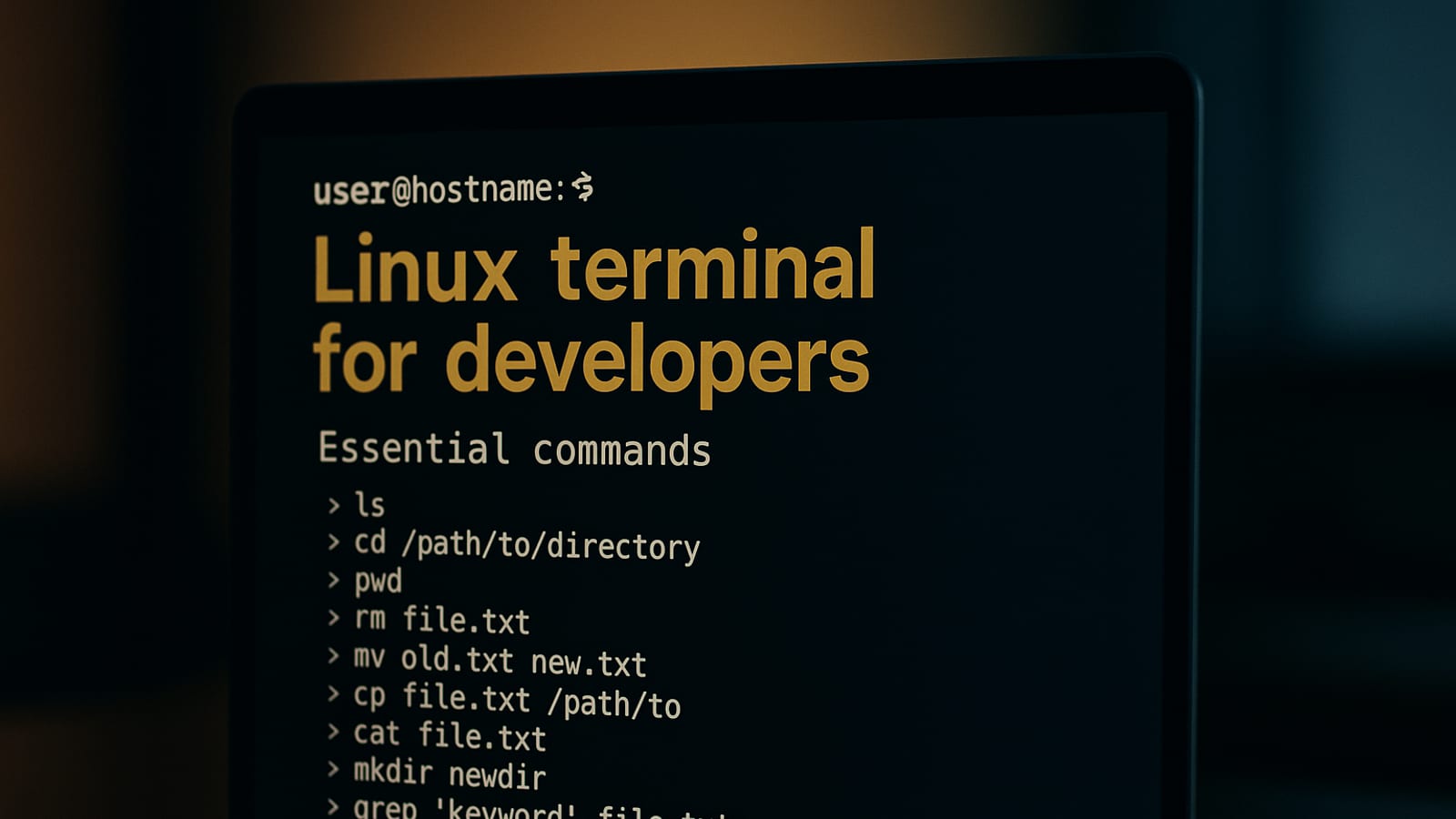
First things first: understanding the terminal’s interface. It’s your command center. Here, you can execute commands to perform tasks more efficiently than through a graphical interface. Let’s dive into the basics:
- Navigation: Use commands like cd (change directory) and ls (list files) to move through directories.
- File Management: Commands such as touch (create files), rm (remove files), and mv (move files) are essential.
- System Monitoring: Tools like top and htop provide insights into system performance.
These skills are foundational. They aren’t just about convenience—they’re about control. When you can execute tasks with precision, you’re on your way to owning your traffic and building systems that compound over time.
Advanced Terminal Techniques
Once you’re comfortable with the basics, it’s time to level up. Here are some advanced techniques that many developers use to streamline their workflow:
- SSH (Secure Shell): This allows you to remotely manage servers. It’s crucial for deploying web applications without direct access to the server.
- Scripting: Automate repetitive tasks using shell scripts. This is a game of compounding efficiency—more done in less time.
- Package Management: Tools like apt or yum help install and update software packages, keeping your environment up-to-date.
Each of these skills contributes to a more efficient development process, enabling you to build and manage systems that run while you sleep.
Tools to Enhance Your Linux Terminal Experience
To make the most of the Linux terminal, you’ll need the right tools. Here are some that can enhance your workflow:
- Logitech MX Master 3S: A precise mouse that complements your terminal work.
- Keychron K2: A mechanical keyboard that makes typing commands a breeze.
- Sony WH-1000XM5: Noise-canceling headphones for focused coding sessions.
These tools aren’t just accessories; they’re investments in your productivity.
Building a System for Success
Now that you have the skills and tools, it’s time to build your system. Here’s a step-by-step guide to get you started:
- Set Up Your Environment: Install a Linux distribution and familiarize yourself with the terminal.
- Automate Tasks: Write scripts for common tasks to free up time for more complex projects.
- Deploy Applications: Use SSH to manage and deploy your applications remotely.
With these steps, you’re not just coding; you’re creating a system that works for you, even when you’re not actively engaged.
Actionable Next Steps
You’re now equipped with the knowledge to start using the Linux terminal effectively. Your next move? Practice these skills daily. Set up a small project, like a tutorial on The Silent Webmaster, to hone your abilities.
Remember, the goal is to create a system that compounds over time, generating value while you sleep. For more in-depth guides, visit our blog for resources that will help you on your journey.
Ready to take the first step? Start by setting up your Linux environment and explore the terminal commands that will transform the way you work.
By mastering these Linux terminal skills, you’re not just learning a tool—you’re building the foundation for a successful web development career. Keep pushing forward, and soon you’ll see the receipts of your hard work.
Optimizing Workflow with Terminal Shortcuts and Aliases
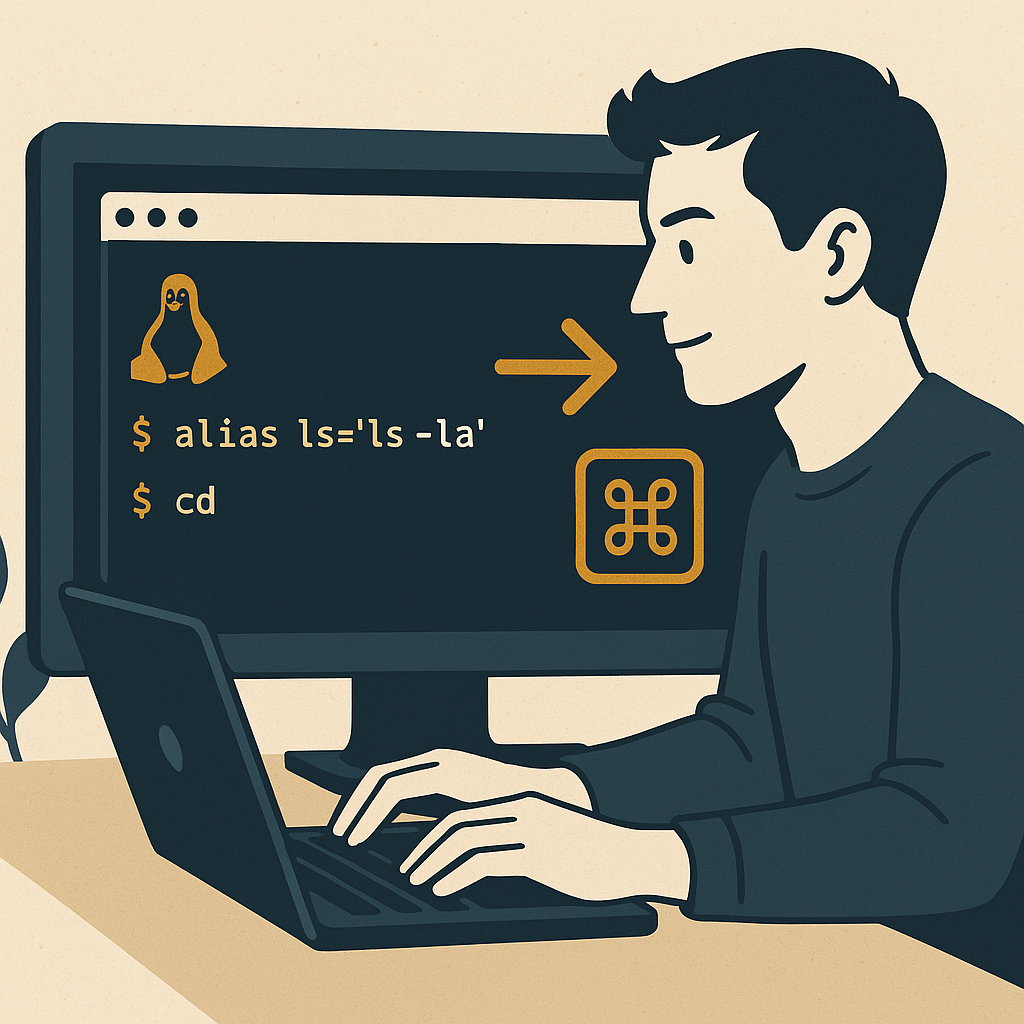
Efficiency in the terminal isn’t just about knowing commands—it’s about executing them quickly and effectively. This is where shortcuts and aliases come into play, streamlining your workflow and saving valuable time.
Creating Aliases
Aliases are shortcuts for longer commands, allowing you to execute complex commands with a simple keyword. Here’s how you can create and use aliases:
- Basic Alias: To create an alias, edit your .bashrc or .zshrc file. For example,
alias ll='ls -la'creates a shortcut for listing all files in a directory with detailed information. - Custom Aliases: Tailor aliases to your workflow. For instance, if you frequently navigate to a project directory, create an alias like
alias proj='cd /path/to/project'. - Persisting Aliases: After adding an alias, run
source ~/.bashrcorsource ~/.zshrcto apply changes without restarting the terminal.
Using aliases effectively can significantly reduce the time spent typing repetitive commands, allowing you to focus on more critical tasks.
Keyboard Shortcuts
Keyboard shortcuts can also enhance your terminal efficiency. Here are some essential shortcuts every developer should know:
- Tab Completion: Press Tab to auto-complete commands and file names, saving time and reducing errors.
- Command History: Use the Up and Down arrow keys to scroll through your command history, quickly accessing previously executed commands.
- Cancel a Command: Press Ctrl + C to terminate a running command. This is useful if you accidentally start a process that takes too long.
Implementing Version Control with Git in the Terminal
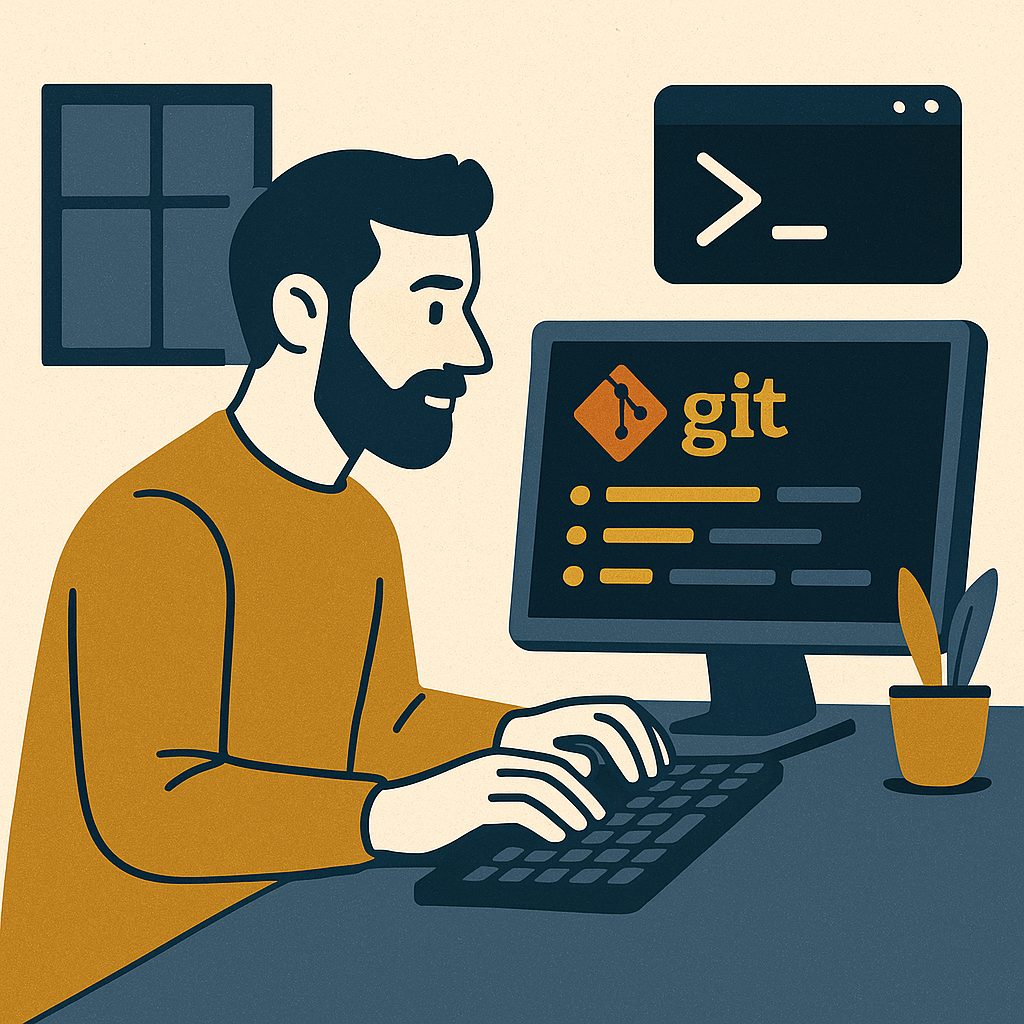
Version control is a critical aspect of web development, and mastering Git via the terminal can enhance your project management capabilities. Here’s a guide to using Git effectively from the terminal:
Basic Git Commands
Start with these fundamental Git commands to manage your repositories:
- Cloning Repositories: Use
git clone [repository URL]to copy a repository to your local machine. - Checking Status: Run
git statusto view changes in your working directory and staging area. - Committing Changes: Use
git commit -m "Your commit message"to save changes to your local repository.
Advanced Git Techniques
Once comfortable with the basics, explore these advanced Git techniques:
- Branch Management: Create and switch branches with
git checkout -b [branch-name]to manage different features or versions of your project. - Rebasing: Use
git rebaseto integrate changes from one branch into another, maintaining a clean project history. - Stashing Changes: Temporarily save changes with
git stashwhen you need to switch contexts without committing.
Mastering these Git commands in the terminal not only boosts your efficiency but also enhances your ability to collaborate with others on complex projects.
Monitoring and Diagnosing with Terminal Logs
Understanding how to monitor and diagnose issues using terminal logs is essential for maintaining the health of your applications. Here’s how you can leverage logs for better insights:
Accessing Logs
Logs provide a detailed record of system events and can be invaluable for troubleshooting:
- System Logs: Access logs using commands like
cat /var/log/syslogortail -f /var/log/syslogto view system events in real time. - Application Logs: Navigate to your application’s log directory and use
lessormoreto review logs, helping you identify errors or performance issues.
Analyzing Logs
Effective log analysis can pinpoint issues and optimize performance:
- Pattern Matching: Use
grepto search logs for specific patterns or keywords, making it easier to find relevant information. - Log Rotation: Implement log rotation using tools like logrotate to manage log file sizes and archives, ensuring your system remains efficient and organized.
By mastering log management, you can proactively address issues and maintain robust application performance.
Integrating Linux Terminal Skills with CI/CD Pipelines
Continuous Integration and Continuous Deployment (CI/CD) are pivotal in modern web development, and mastering the terminal can streamline these processes:
- Automated Build Scripts: Use shell scripts in your CI/CD pipelines to automate build processes, ensuring consistent and repeatable deployments.
- Environment Configuration: Leverage the terminal to configure and manage environment variables, critical for maintaining different deployment environments.
By integrating terminal skills with CI/CD, you enhance efficiency and reliability in your deployment workflows.
Disclosure: this article may contain affiliate links. If you buy through them, we may earn a small commission at no extra cost to you.

Leave a Reply