

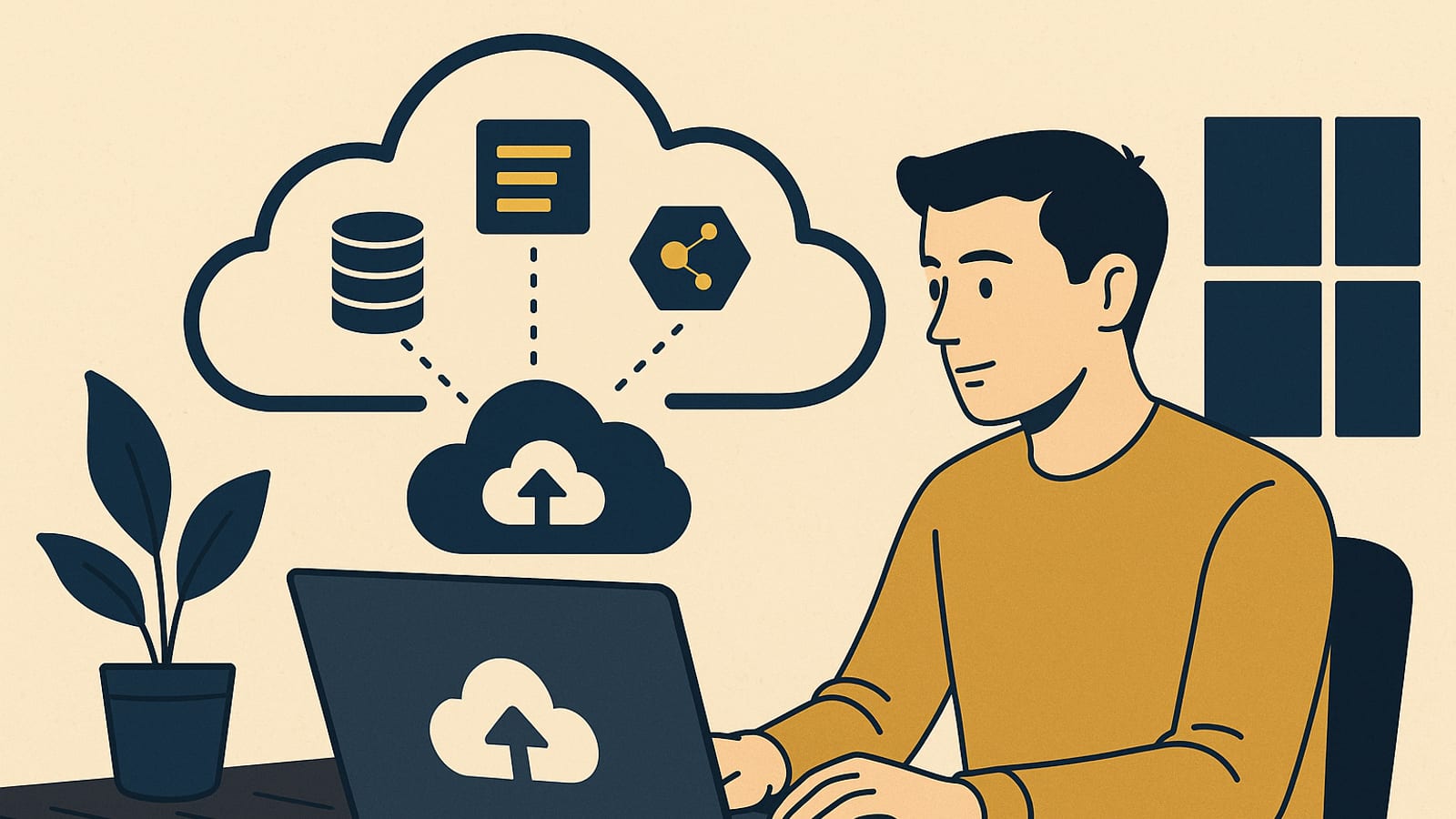
Picture this: you wake up, check your dashboard, and your app handled a thousand new users overnight without a single error. No calls to a hosting provider. No manual intervention. That’s what Google Cloud Platform (GCP) actually does — it runs the system while you sleep. Here’s how to get started, step by step, with the real numbers in front of you.
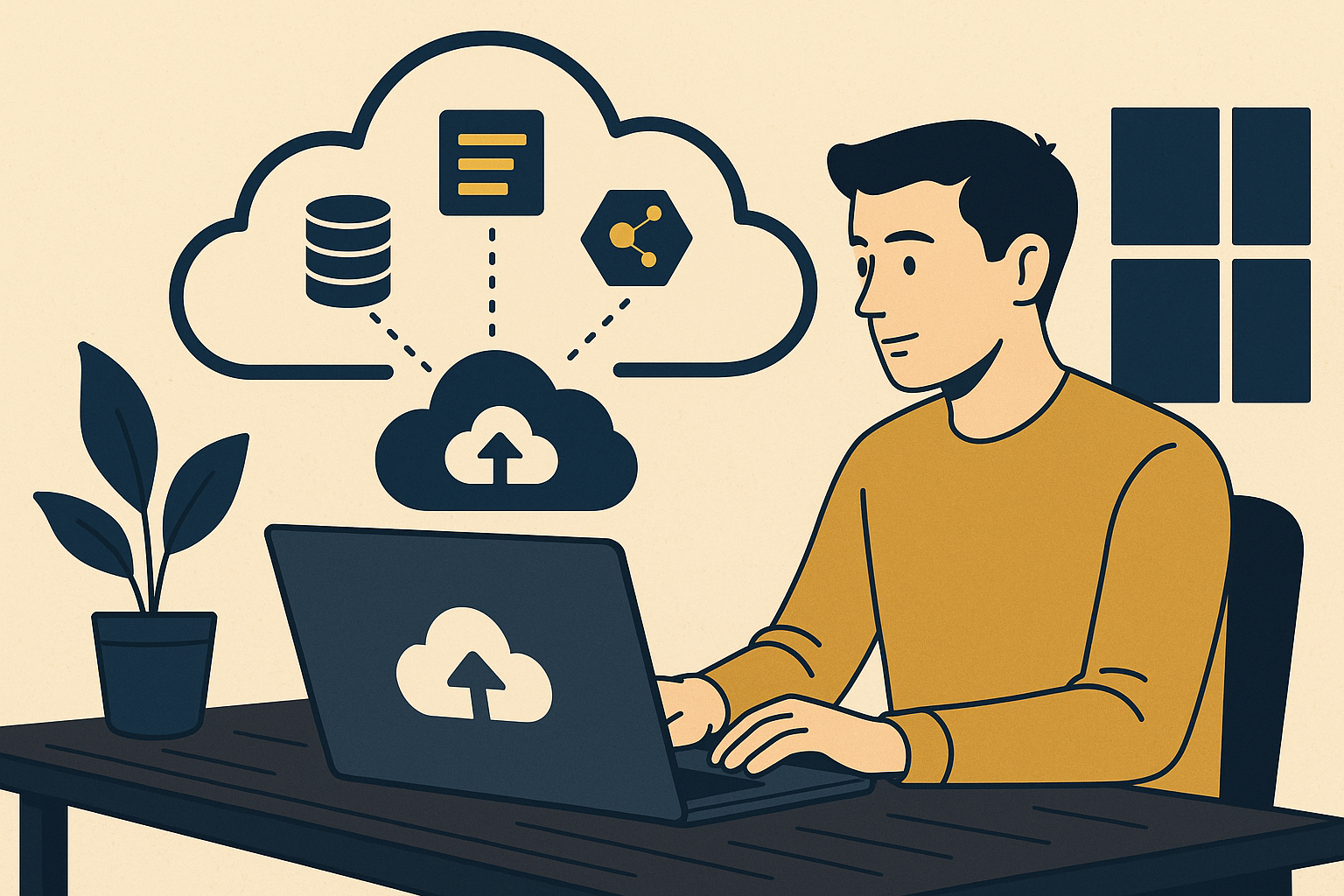
Why Google Cloud Platform?
GCP is not just another hosting option. It’s a full suite — virtual machines, managed databases, AI APIs, global networking — all running on the same infrastructure that keeps Google Search and YouTube online around the clock. That matters because reliability compounds over time.
Here’s a receipt worth looking at. A solo developer cut hosting costs by 30% and pushed uptime to 99.99% after moving to GCP. No team. No DevOps contractor. Just the right pricing model and a clear-eyed decision to use only the resources the app actually needed. That’s the system. Let me show you how to build it.
Setting Up Your Google Cloud Account
Before anything else, you need an account. Google gives new users $300 in free trial credit — enough to explore the platform and deploy real workloads before you spend a dollar.
- Visit the Google Cloud Free Tier to sign up.
- Link a payment method to verify your identity — you won’t be charged unless you go past the free tier limits.
- Once your account is live, you’re ready to start building.
Building Your First Application on GCP
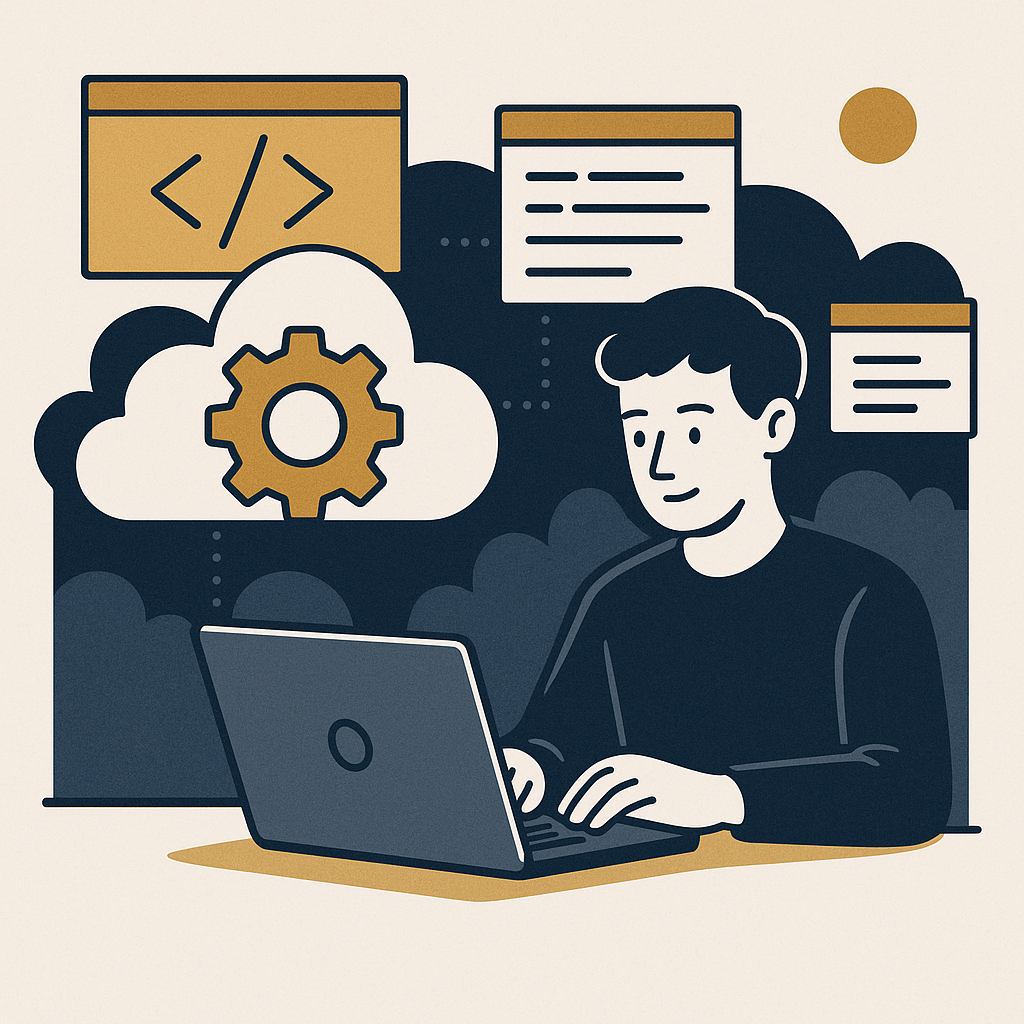
Let’s get practical. We’ll use Google App Engine — a platform-as-a-service product that handles infrastructure automatically so you can focus on writing code. It scales up when traffic spikes and scales back down when things quiet off. You pay for what you use.
Step-by-Step Guide to Deploying a Simple App
- Step 1: Set up your local environment.
- Step 2: Choose your language. App Engine supports Python, Java, Node.js, and others. Pick the one you already know.
- Step 3: Build your app locally. A simple “Hello World” script is enough to walk through the full deployment process.
- Step 4: Deploy with one command using the Google Cloud SDK:
gcloud app deploy. - Step 5: Monitor and scale. Use Google Cloud Monitoring to track performance and let the system handle traffic spikes automatically.
Follow those five steps and you haven’t just deployed an app — you’ve laid the foundation for a system that can grow without you managing every piece of it.
Integrating AI and Automation
GCP isn’t only about hosting. It gives you direct access to Google’s AI and machine learning tools via simple API calls. That means you can add features like natural language processing or image recognition to your app without building models from scratch.
Using AI to Enhance Your Applications
The receipts here are straightforward. Google’s pre-trained models handle the heavy lifting. You call the API, pass in your data, and get a result back. Here’s where to start:
- Browse the Google Cloud AI products and find the tools that fit what your app actually needs.
- Use pre-trained models for tasks like sentiment analysis or speech-to-text — no training data required on your end.
- Deploy them through API calls inside your existing app code.
Add AI to the system and your app starts generating insights on its own — data that tells you what to build next without you having to guess.
Owning Your Traffic with GCP
One of the core principles at The Silent Webmaster is owned traffic. GCP supports that directly. You control the environment. You control the infrastructure. You’re not renting attention from a platform that can change its algorithm tomorrow — you’re building something that compounds on its own terms.
A few moves that reinforce owned traffic on GCP:
- Set up a content delivery network (CDN) to cut load times and keep users on your pages longer.
- Use Google Analytics to track exactly how users move through your site and where you’re losing them.
- Use Google Cloud Storage for scalable, secure data management that doesn’t break when traffic spikes.
Each of these compounds. Faster load times improve search rankings. Better data improves your content decisions. More reliable storage keeps the system running while you sleep.
Next Steps: Start Building Today
You have the blueprint. The real answer now is to act on it. Set up your Google Cloud account, deploy a simple app, and start experimenting with the AI integrations. The $300 in free credit means you can do all of that before you spend anything.
For more breakdowns and tutorials, visit our blog or the tutorials section.
You want owned traffic and a system that works without you watching it every hour. GCP is one of the cleaner ways to build that foundation. Start small, follow the steps, and let it compound from there.
Understanding Google Cloud Platform Services and Solutions
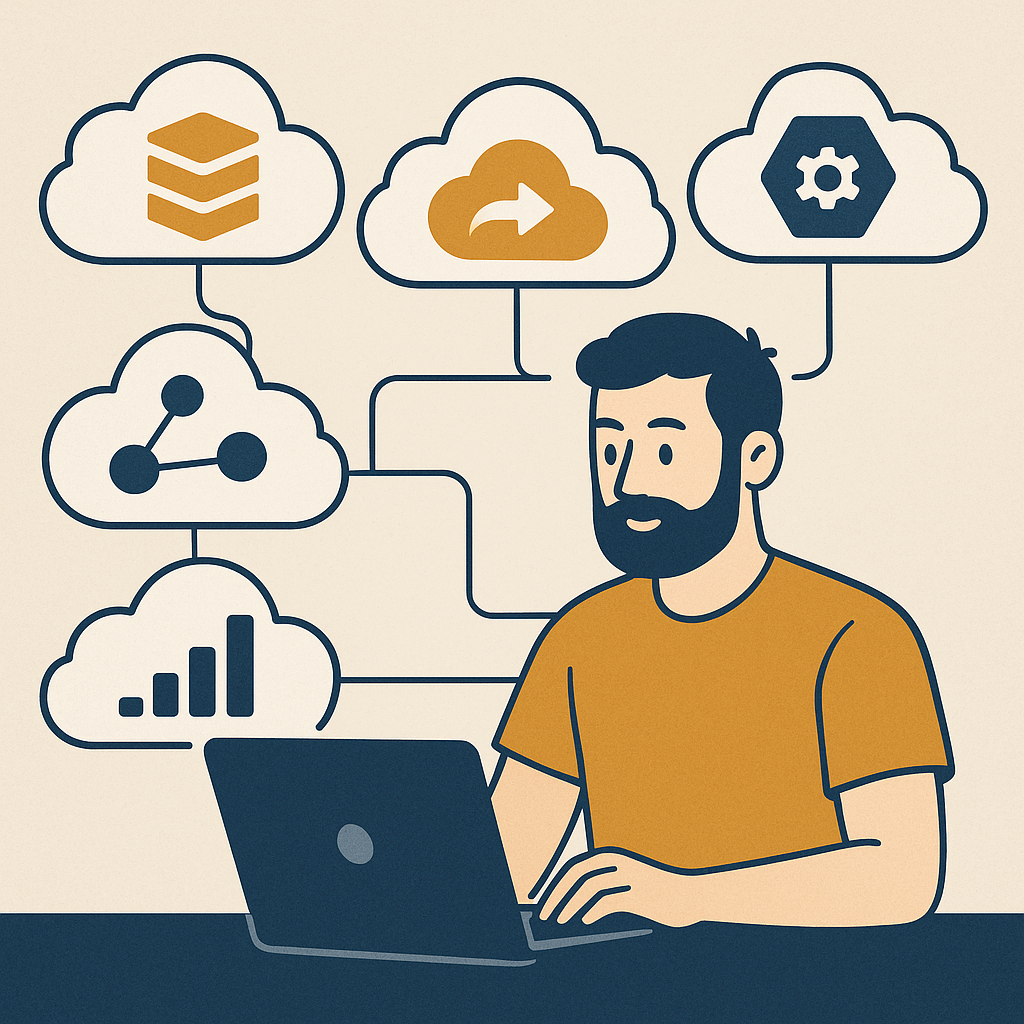
GCP covers a wide range of services. When you’re starting out, the list can look overwhelming. Break it into categories and it gets manageable fast. Here’s what you actually need to know about each group.
Compute and Hosting
- Google Compute Engine: Scalable virtual machines you configure to match your exact workload — run what you need, nothing more.
- Google Kubernetes Engine: A managed environment for containerized apps. If you’re running containers, this handles the orchestration so you don’t have to.
- App Engine: The platform-as-a-service option that manages infrastructure automatically. Write code, deploy, done.
Storage and Databases
- Cloud Storage: Secure, durable file storage that integrates cleanly with the rest of GCP. Good for backups, media, and data archiving.
- Cloud SQL: Fully managed relational databases for MySQL, PostgreSQL, and SQL Server. Google handles the maintenance.
- BigQuery: A serverless data warehouse built for large-scale analysis. Query terabytes of data in seconds without managing any servers.
Networking
- Cloud Load Balancing: Spreads incoming traffic across multiple targets so no single point fails under pressure.
- Cloud CDN: Caches your content at Google’s global edge locations, cutting latency and improving load times for users wherever they are.
Security and Compliance on GCP
Security on GCP isn’t something you bolt on after the fact — it’s built into the platform from the start. Here’s how the system protects your data and your users.
Identity and Access Management (IAM)
- Role-Based Access Control: Assign specific roles to specific users. Only the people who need access to a resource can touch it.
- Two-Factor Authentication: A second verification step — like a mobile confirmation — before anyone gets into your account.
Data Security
- Encryption: All data in transit and at rest is encrypted by default. That’s not optional — it’s on from day one.
- Security Key Enforcement: GCP supports hardware security keys for an additional layer of protection on sensitive applications.
Compliance Certifications
GCP holds certifications including ISO/IEC 27001, SOC 1/2/3, and GDPR compliance. If your app operates in regulated industries or serves users in the EU, those certifications matter and GCP has the receipts to back them up.
Case Study: A Startup’s Journey with GCP
Here’s a concrete example. A small startup called Tech Innovators was dealing with expensive server management and rising operational costs. After migrating to GCP and using Google Compute Engine for their core workloads, they cut infrastructure spending by 40%.
They also layered in Google Cloud AI tools — predictive analytics and real-time user feedback processing — which improved customer satisfaction without adding headcount. The system did the work. Flexible pricing kept costs in check, and faster deployment cycles got their product to market sooner. That’s what the platform looks like when it’s used correctly.
Monitoring and Performance Optimization
A system you can’t see is a system you can’t trust. GCP gives you the visibility to know exactly what your app is doing at any moment and the tools to fix it when something drifts.
Using Google Cloud Monitoring
- Real-Time Insights: Live performance data so you can spot and address problems before users notice them.
- Custom Dashboards: Build dashboards around the metrics that matter to your specific app — not a generic template someone else designed.
- Alerting: Set thresholds and get notified the moment something falls outside normal range. Your team responds to facts, not guesses.
Use these tools consistently and your app stays lean, fast, and available. That’s the system working the way it’s supposed to — optimizing itself while you focus on what’s next.
Leave a Reply